Device Networking
After selecting a device, you can select the Device Networking tab. This tab shows networking statistics for the filter device, allows configuration of the management interface, changes to the filter ports, and set up of associated bypass devices.
Interface Traffic
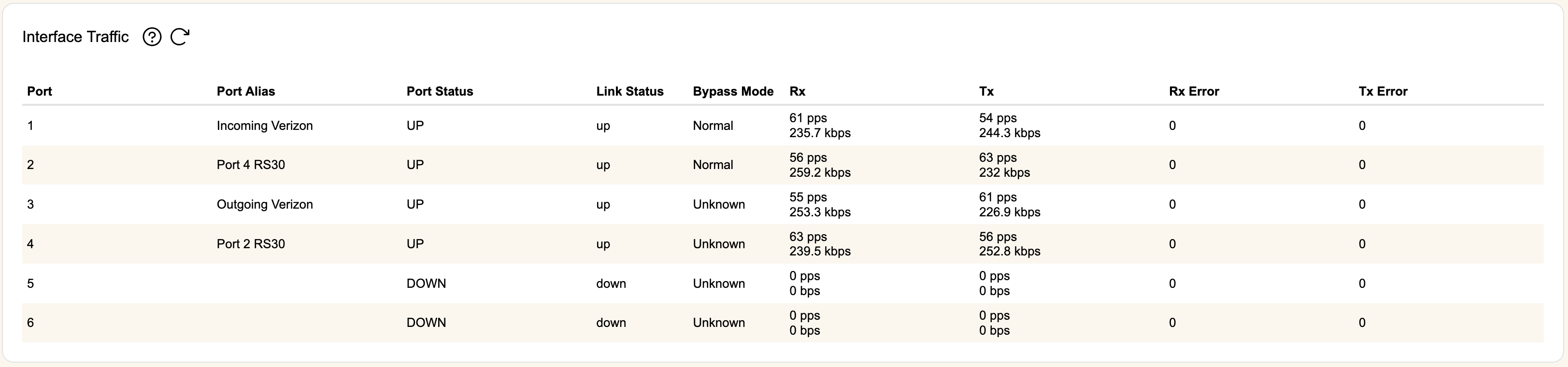
Devices will list their current traffic per port in this section.
Management Port
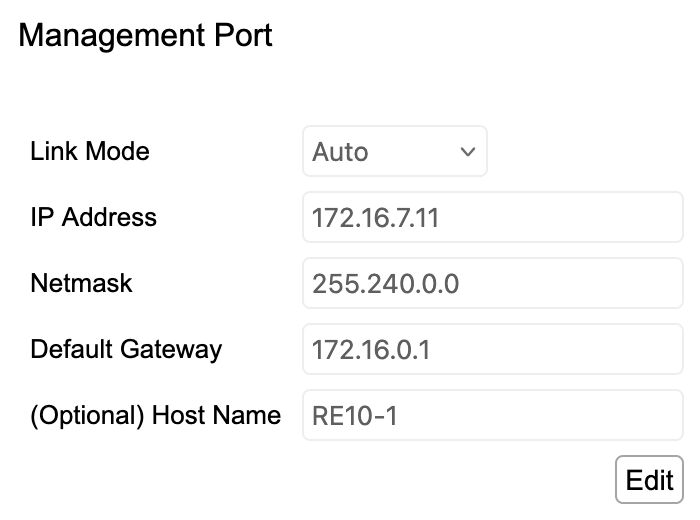
Once the initial install procedure is complete, the management port of a connected RIOS device can be configured here.
Filter Ports
Jumbo Frames
As a networking standard, Jumbo Frame largely refers to the frame size that can accommodate an MTU of 9000 bytes. As of RIOS 7.1.5, all accompanying supported devices (RE2K, RE4K, RE10, RE100, RX10, RS10, RS30, RS40, RVM) support Jumbo Frames with an MTU of the standard 9000 bytes, and the following maximum size ethernet frames:
- RE2K, RE4K, RX10, RS30- 9018 Bytes
- RE10, RE100, RS40, RVM- 9216 Bytes
All devices support Jumbo Frames if the attached NICs support it without any configuration required, except for the RE2K and RE4K, which need to have it enabled here.
Devices will report the supported MTU of a given link on the Device Summary tab in bytes, under the section "Maximum transmission unit". If the attached NIC on the link supports jumbo frames then the MTU will be 9000 bytes, or the largest size supported by the driver, whichever is smaller. If the NIC doesn't support jumbo frames then the MTU will be 1500.
To enable or disable Jumbo frame support, hit Edit, toggle the checkbox as desired, then hit Save.
IPFIX PSAMP
If the RIOS device is running RIOS 8.6 or higher, there will also be an option showing which ports have PSAMP enabled.
Mitigation Config
By default, RIOS devices unwrap tunneled traffic and mitigate based on the innermost IP layer. Specifically the IP protcols unwrapped are IPv4 Encapsulation (4), IPv6 Encapsulation (41), and GRE (47). Starting in RIOS 8.7, devices can be configured to not unwrap traffic and instead handle it based on the outermost layer. Devices running previous versions will still show this control but the setting will not be able to be adjusted.
Device Links
This section of the networking tab covers links and the bypass devices associated with them.
General Link Settings
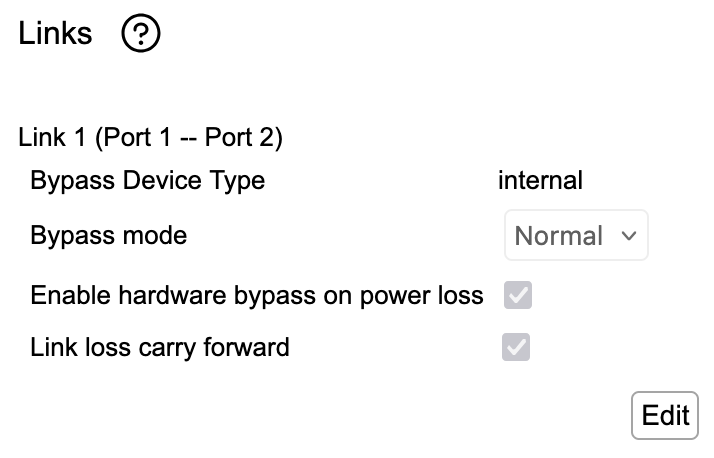
Click Edit to change settings. Click Save when finished.
- Link #- Each link is a WAN/LAN pairing of the two ports listed. You will see a link for each set of ports physically installed on your device. Changing the settings for ports that are unlicensed.
- Bypass Device Type- For older RX10 and RS30 devices, if the ports are 10G and you have purchased an RB Fiber Bypass, you will see RB#. The number should match the link, as well as be displayed on the front of the RB itself. RS40s and the majority of RE devices will report internal. All bypass devices are fully passive in the case of optical ports (thus incurring some Db loss), and the data ports are cross connected in bypass for copper Ethernet ports.
- Bypass mode- Normal will route traffic through the filter device. Bypass forces traffic through the bypass device associated with that link.
- Enable hardware bypass on power loss- Click to automatically engage the bypass if the filter device loses power. This should be checked if you want the bypass to automatically engage during manual reboots or upgrades.
- Link loss carry forward- Click to enable LLCF for the link. If one of the ports on the filter device for that link fails, the filter device will disable the other the port in the link as well.
There is a currently an edge case affecting RE10 and RS40 devices. In this case, when there is a faulty SFP or only one cable of a fiber RX/TX pair is disconnected/broken, a port in the link can report as down but LLCF will not force the other port down. The device will generate an alert for this situation. In this case, check the cabling and transceivers used in this link's port pairs.
- Dedicate for SSL processing (RS30 or RS40 only)- If enabled, the WAN port on this link will be used for processing decrypted SSL packets, which should be sent by a separate external decrypter. Enabling this option disables the LAN port of the link completely, as decrypted SSL packets are analyzed only and never forwarded. You can configure which zones will analyze SSL traffic using the SSL control on the Zone Mitigation Tab.
If a Link is set to Dedicate for SSL processing, and there is an RB associated with that link that is set to Bypass mode for any reason, your SSL cleartext traffic will be dumped without any warning or notification from rWeb.
VM or RE100 Link Settings
The RE100 and VM currently do not support any changes in this section (it won't be visible for VM devices at all).
If you want to use an external bypass with the RE100, we have tested to ensure that the RE100 is compatible with the heartbeats produced by the Silicom IS100 100G Bypass Switch while it is in inline mode. This means that although you can't configure the bypass from within rWeb, the switch can be set up to automatically bypass the RE100 while it is in a down state (e.g. during upgrade, power loss, or other connectivity problems).