Shared Lists
rWeb Admin level users can create Shared Lists for block list and/or allow list entries. This allows zones to refer to common set of config that can be updated once in one location rather than updating block or allow list entries in each individual zone. These entries are only used by zones configured with the shared list, as compared to the global block list/allow list which applies to every zone.
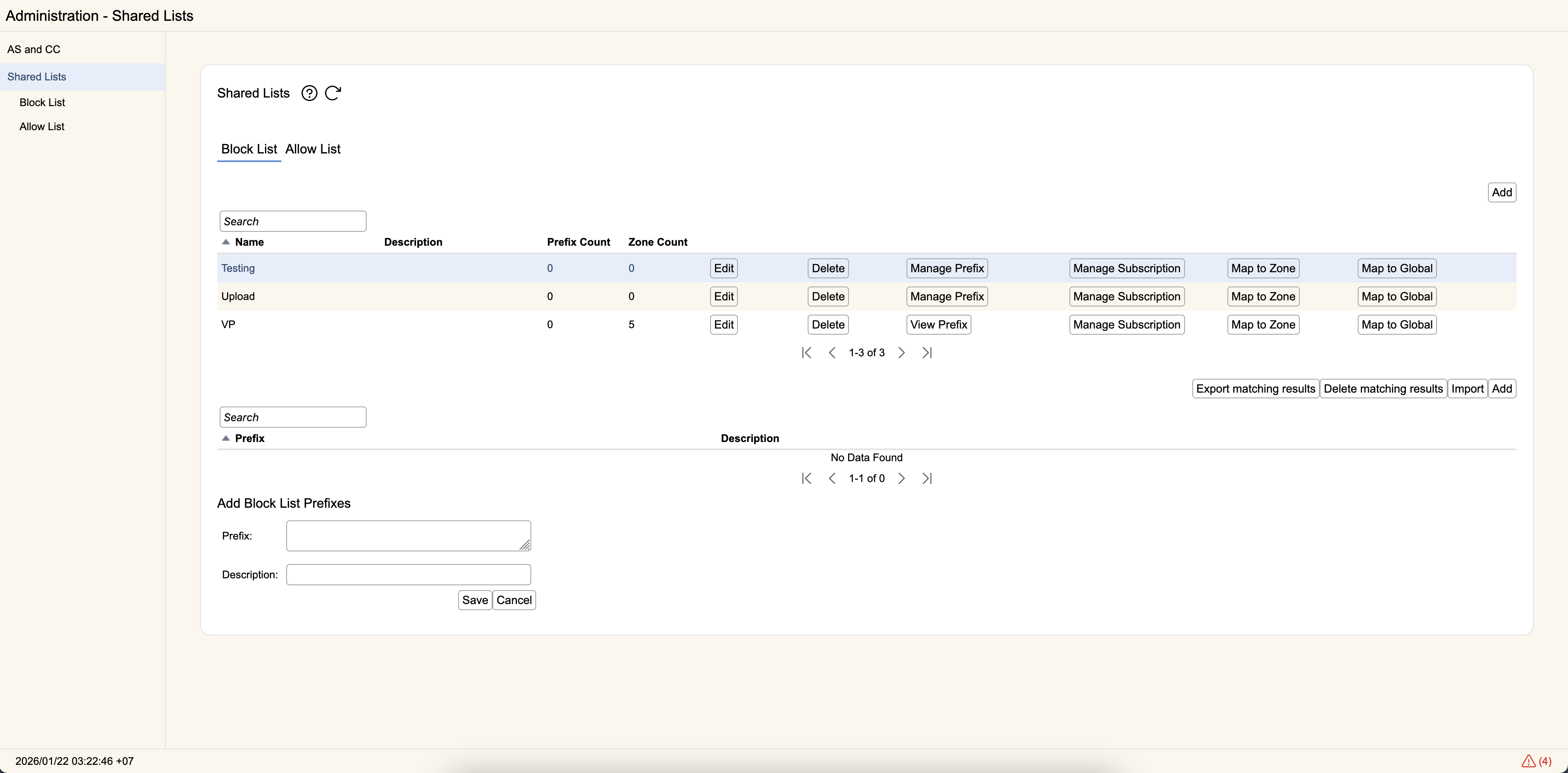
Managing Shared Lists
Click Block List or Allow List at the top to begin. Once selected, a table below it will populate with the Name and optional Description of existing Shared Lists. Each entry will show the number of routing prefixes associated with the Shared List, and how many zones are currently using the Shared List.
Shared List Prefixes
Clicking the Manage Prefix button will open the set of prefixes associated with your selected Shared List entry. Under this section, you can Add, Edit, and Delete prefix entries. Export matching results allows you to export all entries matched by your current search query to an xml file. This xml can be imported (here, or in other zones) using Import. In addition, to facilitate deleting large numbers of prefixes, Delete matching results will delete every entry matched by the current search query.
Shared List prefix entries can only be IPv4 or IPv6 routes, not AS or CC entries to prevent excessive prefix consumption on devices. Generally if you need widespread blocking or allowing of traffic by AS/CC you should use a global block list or allow list entry instead.
Block List Subscriptions
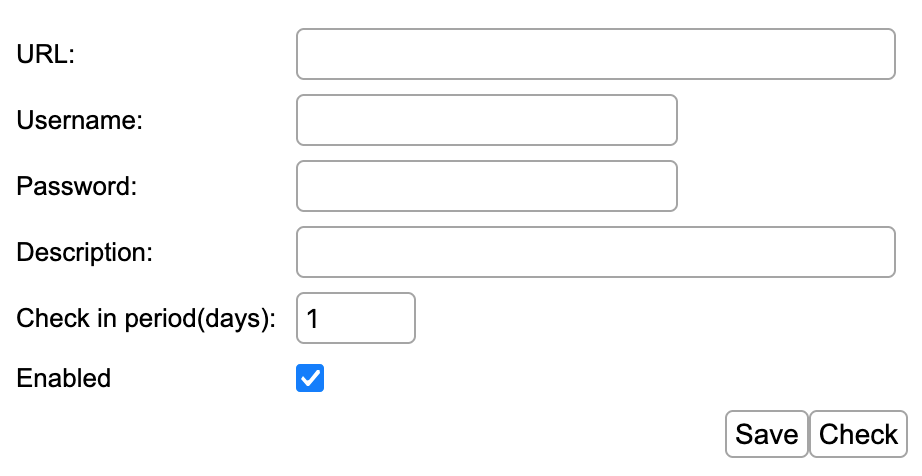
rWeb can use external sources to maintain a list of addresses to block list (this option is not available for Shared Allow Lists). Enter the URL of the external source. If the URL requires authentication, enter your Username and Password. When making a request of the external URL, authentication will be submitted using HTTP Basic Auth. Finally, enter an optional Description and how often the list should be retrieved using Check in period (days), then hit Save. Use the Check button to immediately attempt to use the configured settings to retrieve the latest copy of the block list.
Currently the expected response from the URL should be a text body with its data in CSV (comma-separated values) format. The first item in each line should be the IP or IP subnet to block. It can be followed by an optional description value. Any lines in the response not matching this format will be discarded.
SSL Certificates will not be checked for external URLs. Make sure you understand the risks associated with requests being made at the associated URL.
Shared List Zone Mappings
Shared Lists will only affect traffic if they are mapped to a zone. The Map to Zone button will bring up a table of all currently configured Groups and Zones on rWeb. Clicking a Group check box will automatically select all children Zones of that Group, or they can be selected independently. Once you are finished selecting the zones to map the shared list into, hit Apply to save or Cancel to back out of the operation.
You can also directly map the Shared List to a global entry by hitting the Map to Global button. This will turn the selected Shared List into a global entry, clearing any existing Zone mappings. Clicking Unmap from Global will turn it back into a normal Shared List entry, which will then need to be mapped back to its desired set of zones.
Zones with Shared List entries will have those entries visible in their respective Block List or Allow List configuration sections, but those entries can only be modified by rWeb Admin level users on the Shared List screen.