User Configuration
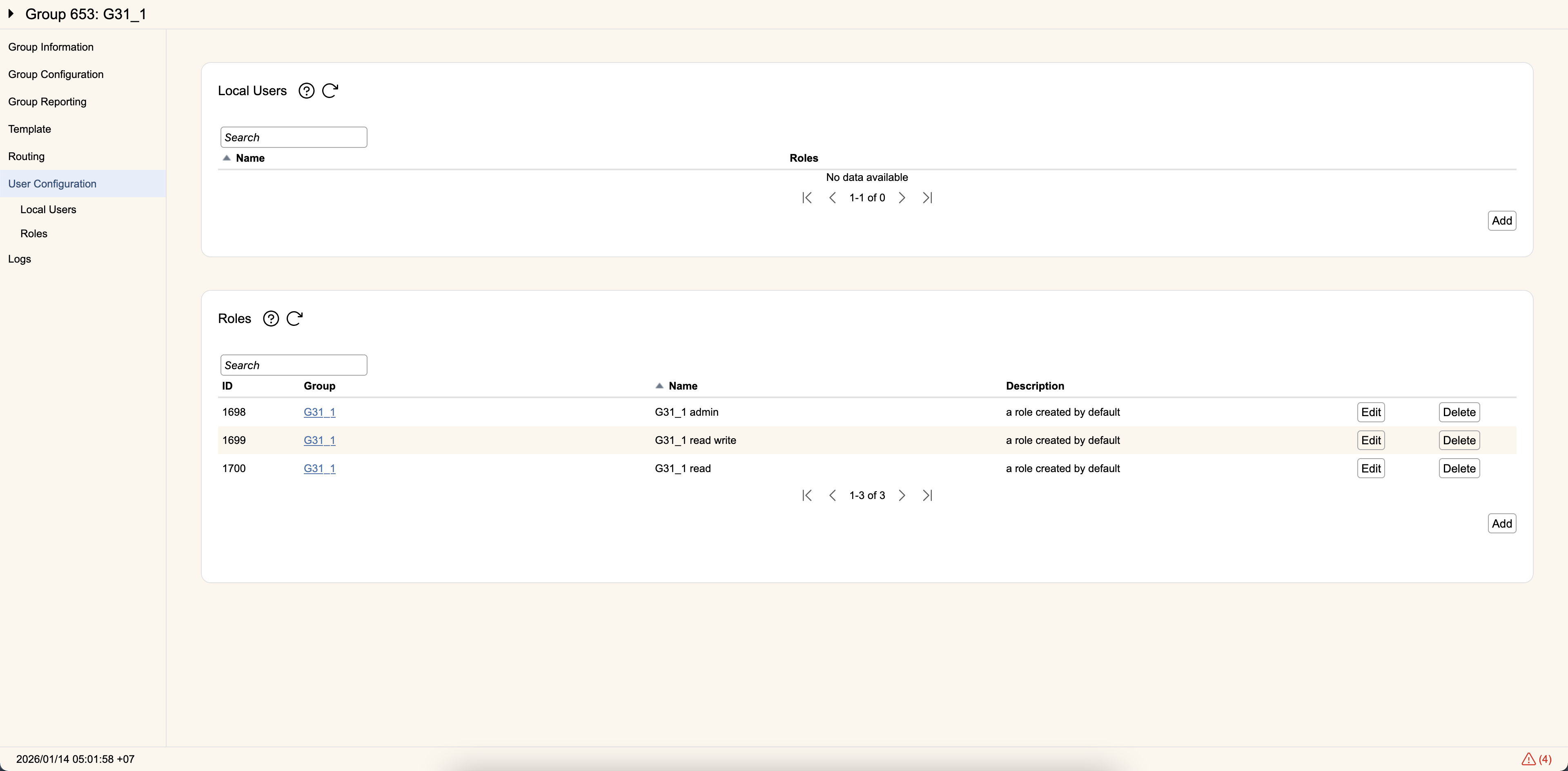
The User Configuration section shows the list of users assigned to the group, as well as their assigned roles. Roles are groups of permissions that affect what operations a user is allowed to perform within rWeb.
Local Users
Users can be created locally within the group and assigned one or more Roles. The table is populated with the current set of users in the group and their currently assigned roles. Hit Edit to change their name, password, and role assignments. Hit Delete to remove the user.
The Default Group's 'admin' user cannot be deleted. This ensures there is always at least one admin user for management purposes.
Hit Add to open a new section for adding a new user. Enter the User Name that will be used for logging in. If Allow Password is checked, enter the Password (entered again in Confirm Password) that will be used during login. If Allow Password is not checked, this user can only log in via OIDC. A user can have a password and still use OIDC to log in.
Lastly, check the Roles assigned to the user. You must select at least one role before you can create the user.
Hit Save to create the user or Cancel to close the Add User section.
Roles
Roles with different permission levels can be created and used to assign those permissions to users. Three default profiles exist: 'mitigation admin', 'infrastructure admin', and 'admin'.
The ID column is the unique identifier for each listed role. When setting up authentication via RADIUS and TACACS+, assign users their role using the ID value shown here.