Hardware rWeb Installation
RioRey devices running RIOS require a connection to an rWeb server. This page outlines how to install a hardware rWeb in its single server configuration.
The single server rWeb from RioRey is pre-configured in a 1U server as shown below. For this configuration, only one ethernet port is used (as indicated in the diagram).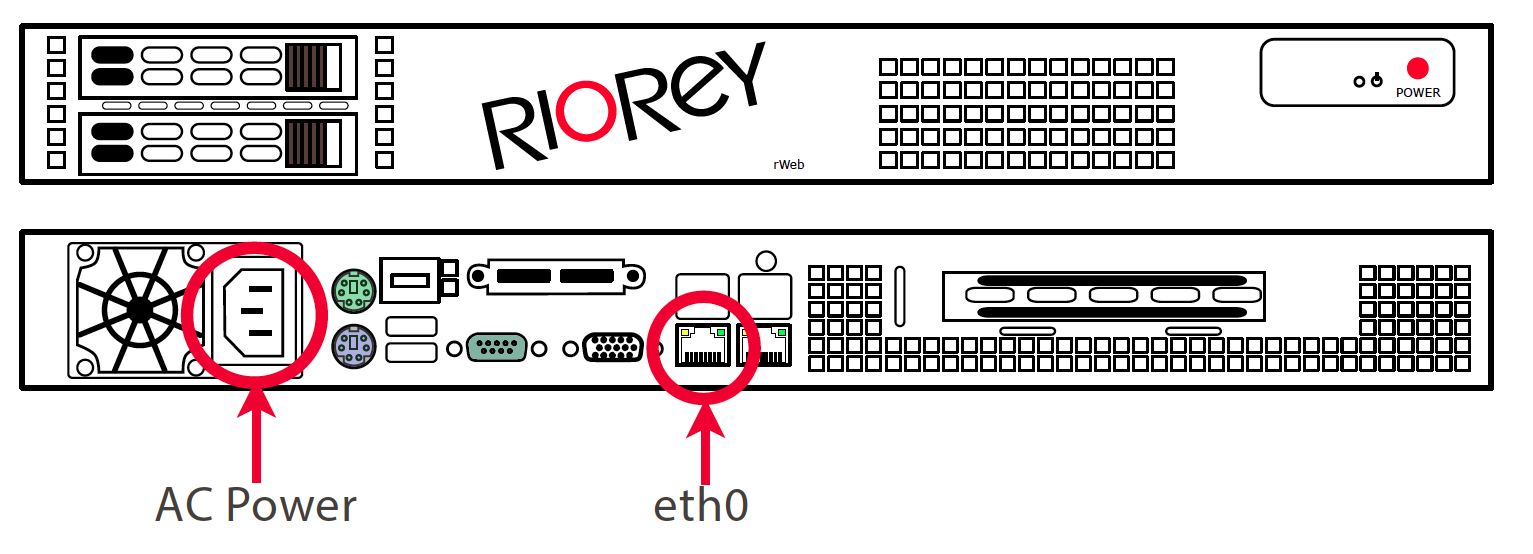
Initial Configuration
The server is set with a default IP of 192.168.1.3. To configure rWeb:
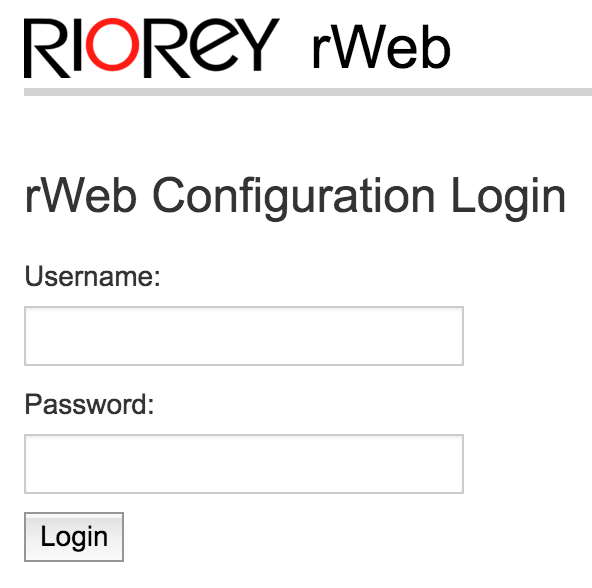
- Using a browser, connect to the rWeb port and go to: https://192.168.1.3/setup.
warning
You must use "https", NOT "http".
- Login as the standard rWeb config user: admin/admin123
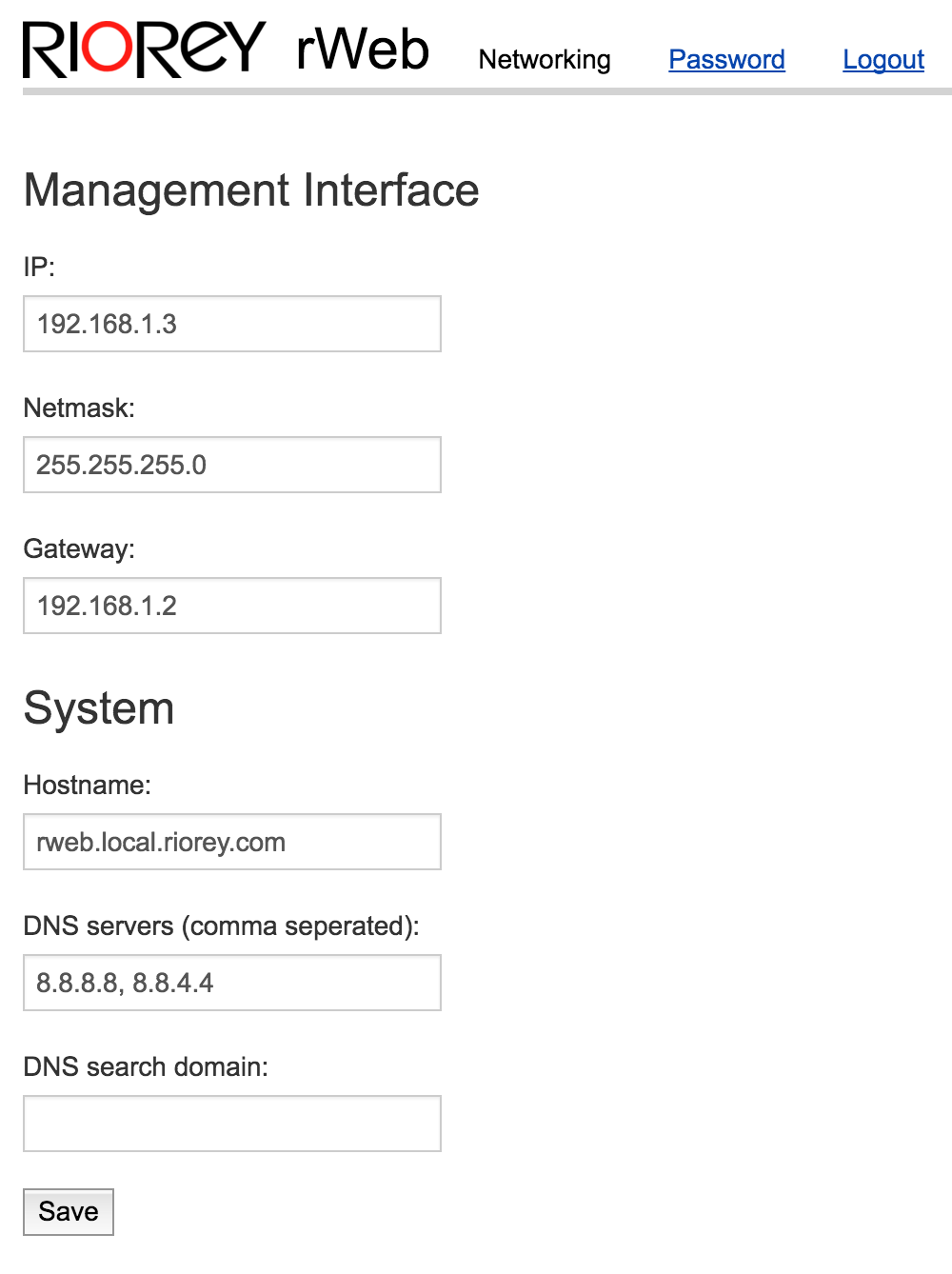
- Click Networking tab and set up rWeb's new IP, netmask, gateway and Hostname. Then hit Save. Optionally, you can configure the DNS servers and search domain used by rWeb.
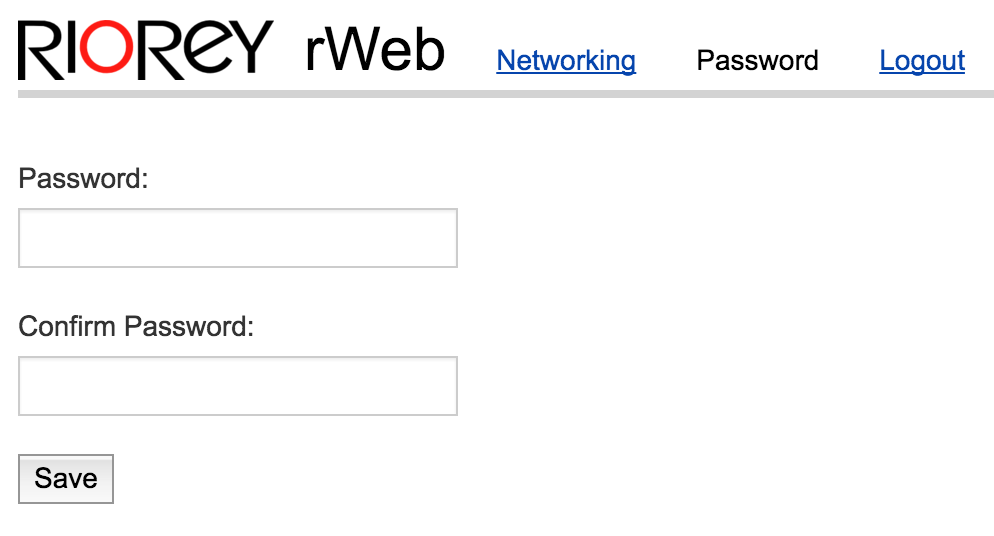
- Log back in using the new IP to confirm changes. Then click Password tab and change this rWeb config user to a new secure password. This user is only used for rWeb setup config.
- Logout from the setup pages.
- You should now be able to access the web front end of rWeb at your configured IP address as the default admin user. Once the login prompt is visible, login using the following default user name and password:
login: adminpassword: admin123 - You can now configure rWeb to work with your filter devices. Please refer to the mitigation guide for more information on how to adjust your mitigation settings.