VMWare rWeb Installation
Requirements
The following guide shows how to install rWeb VM using VMWare vSphere. These instructions assume you already have vSphere/ESXi installed and running on your host machine.
Additionally, to start the rWeb VM, you will need to meet the minimum resource requirements:
- vSphere v5.5 or greater
- Appropriate Memory/CPU/Disk space
Create VMWare rWeb Device
To create a VMWare rWeb virtual machine, deploy the rWeb OVA using vSphere Web Client or the vSphere Client.
When deploying rWeb, it will require a static IP.
Configure VMWare rWeb Device
To configure a VMWare rWeb virtual machine:
- Power on the rWeb VM. Watch the graphical console.
- Wait for the prompt 'rWeb->'.
- Press 'Enter' to see the full list of available commands.
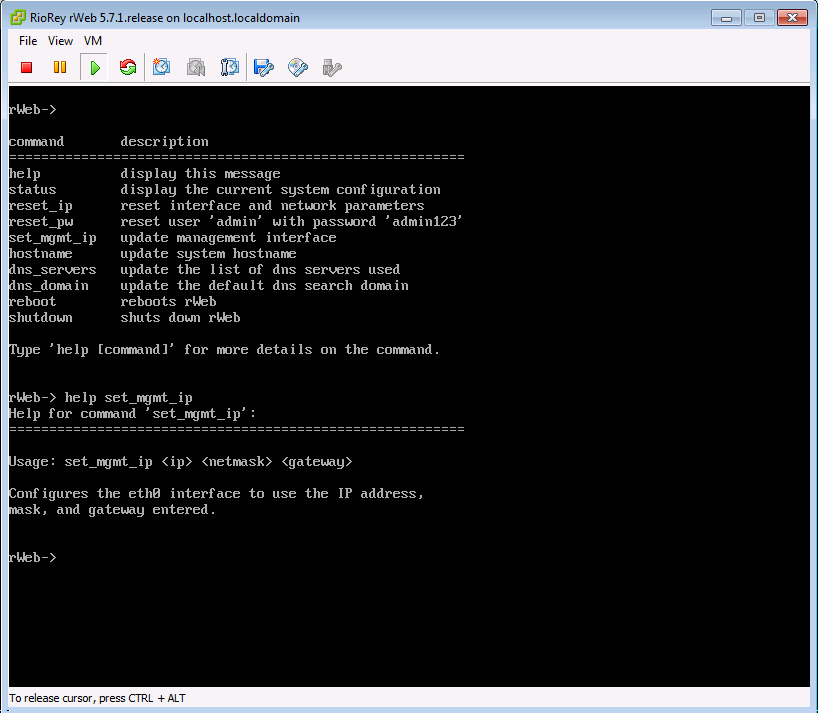
- The console connection will provide a number of commands. Entering help will list them. Typing help then a command name will print out detailed information on that command.
- By default, rWeb will use a management IP of 192.168.1.3. If your VM requires a different network address, you will need to use the set_mgmt_ip command.
- Use
set_mgmt_ip
to set the management interface to your desired address.
If the VM has just been created, it may take up to five minutes for the initial IP configuration to take effect.
- Check to make sure you can log into rWeb from within your network, by using a browse to visit
https://IP-from-step-6. If you are running DNS and configured a hostname, you can access rWeb using that hostname instead of by IP. - Once the login prompt is visible, login using the following default user name and password:
login: adminpassword: admin123 - Once logged in, you will need to get a license for the new VM from the license administration page. The top section has a table of unlicensed devices (on a fresh install this will only be the rWeb). You can click the button in the table to copy the serial number to your clipboard. Paste this in an email to so they can generate a license for the VM. They will notify you once it is generated, so that all you need to do is click the "Pull licenses and apply" button to license your rWeb.
- You should now be able to configure rWeb to work with your filter devices. Please refer to the mitigation guide for more information on how to adjust your mitigation settings.
Increasing VMWare rWeb Storage Space
The default configuration of the rWeb VM image has 15 GB of virtual storage. This is enough for roughly one week of historical data plus rWeb's internal requirements. If you require more history, you will need to expand the amount of storage available on the image. You can see how much more storage will be required by reviewing rWeb's current storage use. To increase the image's storage space:
- Shut down rWeb, either through the console or through the Web Interface.
- Resize the disk through any of the VMWare interfaces.
- Power rWeb back on. It will reboot once, and then you will have access to the additional space.
- To configure rWeb to store additional historical data, use the disk usage management page.