rWeb Cluster
For high availability or disaster recovery situations, rWeb can be configured to replicate its settings and data with another rWeb. This streaming can be done between hardware rWebs, between rWeb VMs, or between a hardware and a VM rWeb.
An rWeb cluster operates in an active/passive mode with operator-driven failover. It is suitable a for local or geographically distributed architecture. Most deploymnents will use a separate load balancer in front to route connections to the active rWeb.
Requirements
In order to set up clustering, you will need two instances of rWeb (hardware or VM) both running the same version of rWeb. The minimum version required for clustering is 7.0.0.
Clustered rWebs need both unique IPs and hostnames. These cannot be changed while the cluster is active, but if needed you can break the cluster, make any required changes, then re-establish the cluster.
There are additional ports that need to be opened for the rWebs in the cluster to communicate with each other. This additional ports are listed in the "rWeb Cluster Ports" section in the installation section.
Separately, you will need each of the instances you are using for a cluster to be licensed with clustering unlocked.
Licenses for the rWebs in the cluster should have the same features enabled. For example, if one rWeb has unlimited zone usage and the other rWeb's license restricts it to only 5 zones, the clustering operation will not be allowed to proceed.
Setup
The new clustering capability is available under the "Cluster" section of the setup pages used to initially install rWeb, once the cluster capability has been appropriately licensed.
If you have not received and uploaded a license for clustering, you will not see Cluster under the tabs available in the setup pages.
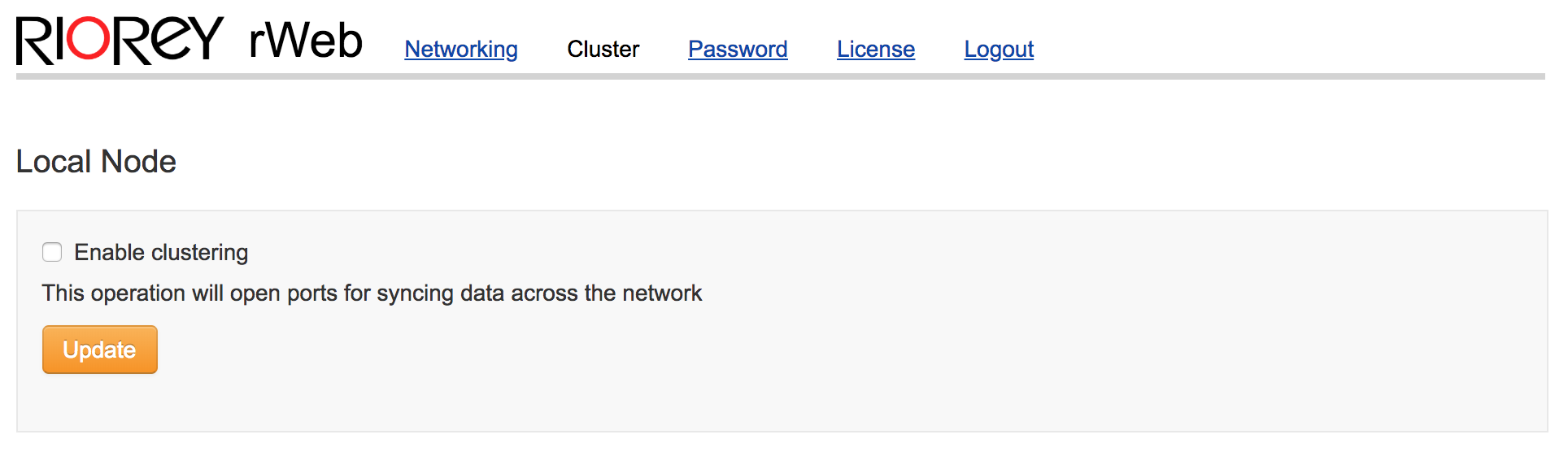
Click Enable clustering, then hit Update.
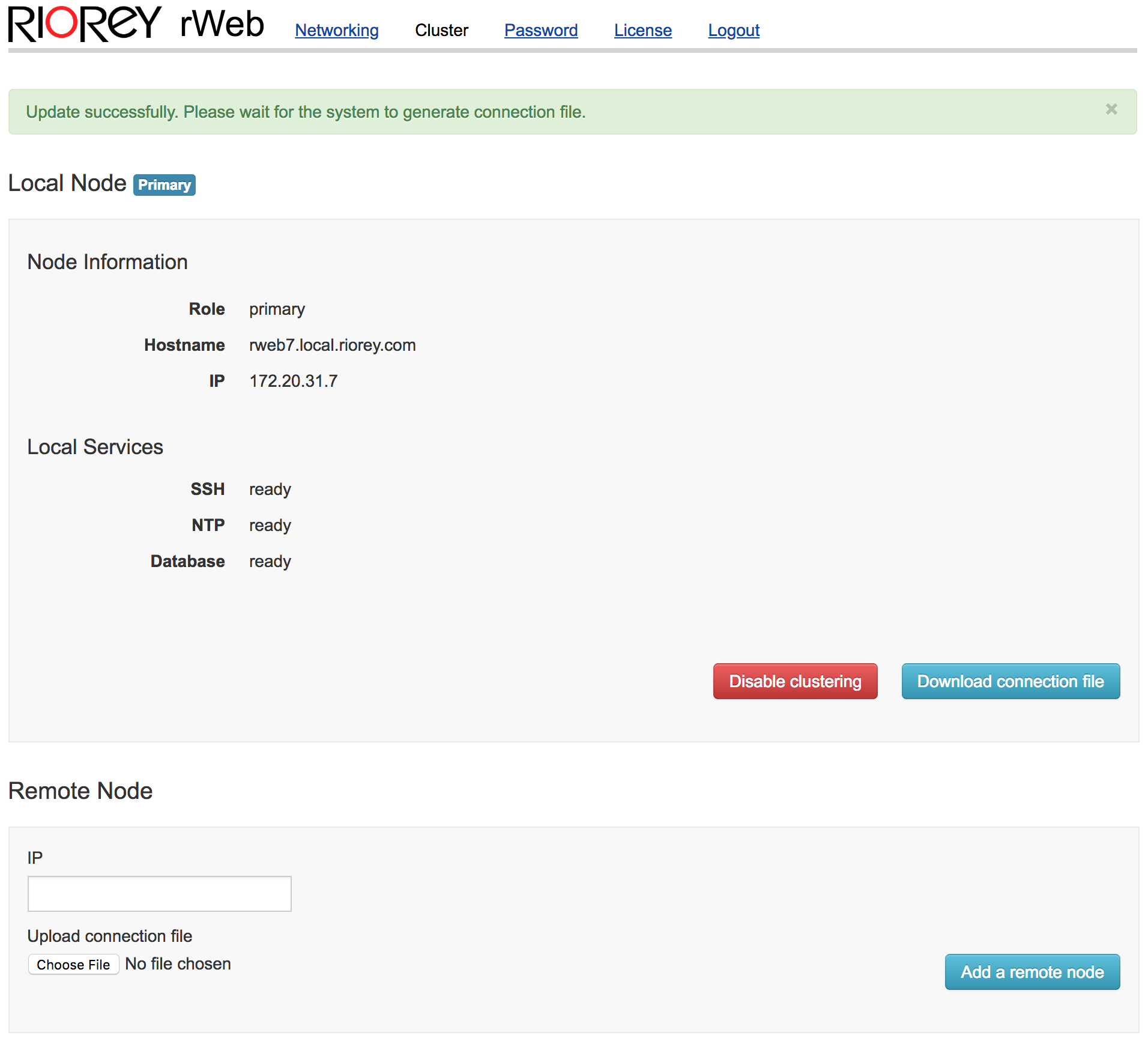
In order to pair with another rWeb, a signature file is generated to allow another rWeb to authenticate it as a cluster server. For both of your rWebs, click Download connection file to generate these files.
Once these files are ready, download them, then go to the setup pages on each rWeb in your cluster. Under Remote Node, enter the address of the paired rWeb, then click Choose file to select and upload the connection file you generated for that rWeb. Once the file is uploaded, click **Add a remote node. **Do this for each rWeb in your cluster.
After a minute, you should see the page update with the current status of the cluster, and of both the local and remote nodes. To formally begin clustering, identify the rWeb that should be the secondary, log into the setup section, go to the Cluster page, and click Erase all my data and make me the secondary.
Once clicked, the rWeb configured as the secondary will clear its existing data and begin replicating the data present on the primary.
Cluster Operations
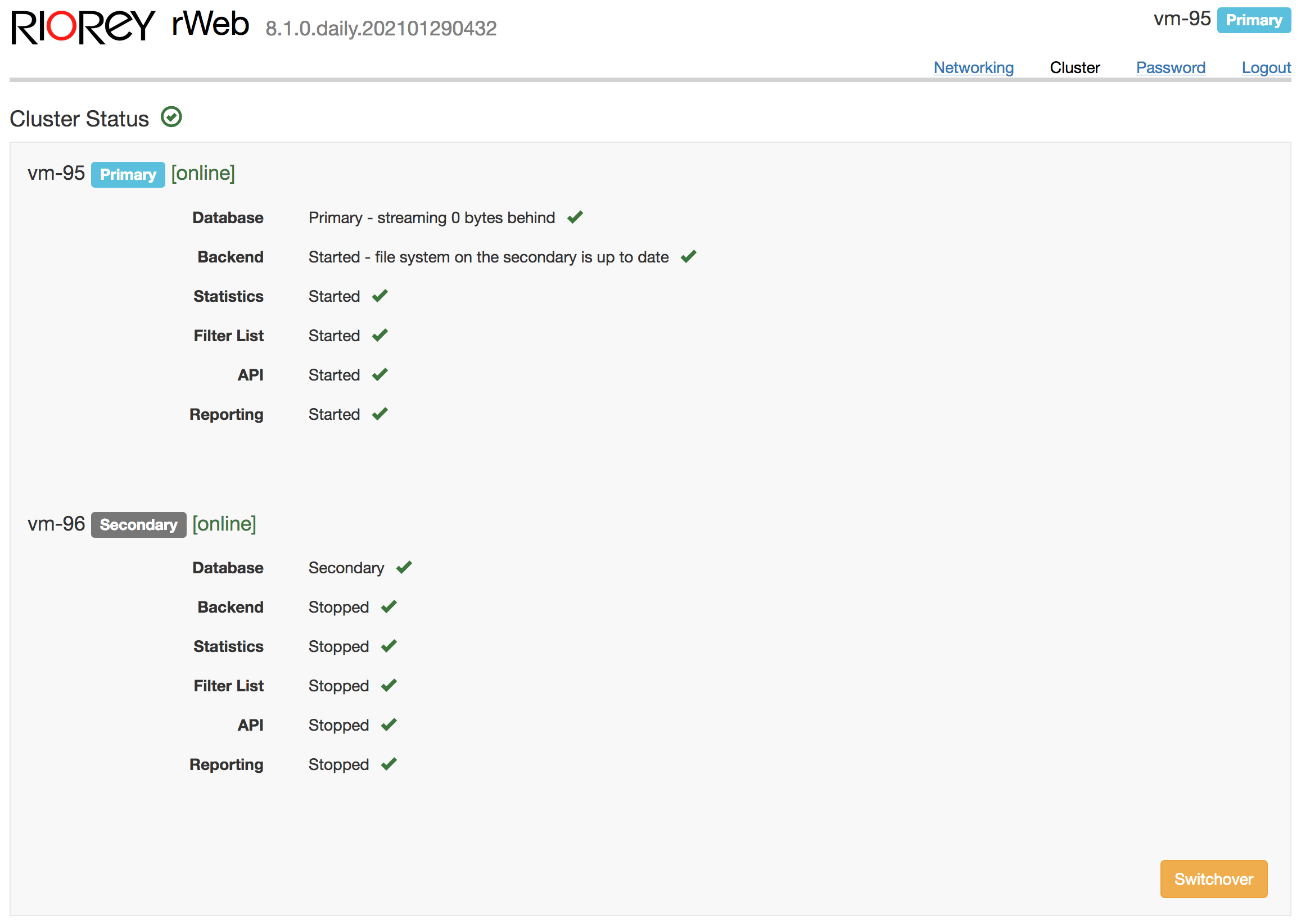
Once configured, your current clustering status will be shown in the Cluster section of the setup pages on both the primary and secondary. The primary rWeb will also show a condensed version of the cluster status in the GUI, though the setup page will have full details as shown in the image below.
After clustering is enabled and running, there are two further operations that can be performed:
- Switchover- This will swap the rWebs' roles so that the primary becomes the secondary, and the secondary becomes the primary. This action can be triggered on either the primary or secondary rWeb. When triggering the switchover, the page will show a checkmark next to the top level "Cluster Status" once it is complete. The new primary will issue a "claim" operation for all configured devices to ensure it has full operational control.
- Disable clustering- This will disable the clustering functionality on the rWeb for which this is selected. Depending on which system is disabled, this will have different effects:
- Primary disabled- The primary will continue to operate as before, but will no longer stream any data to the secondary rWeb. The secondary rWeb should show that it is no longer receiving data, but will otherwise stay in a passive mode with a copy of all data from the primary up to the time clustering was disabled.
- Secondary disabled- The secondary will start acting as a normal rWeb, with a copy of all data from the primary up to the time clustering was disabled. The primary will show that is has connection errors to the secondary, but will retain control of all filter devices. As the secondary will have a copy of the device connection information, the devices will also show on the secondary rWeb with "rWeb conflict" to indicate the devices are still being controlled by the primary.
Load Balancing
A load balancer can be configured to forward requests to the primary rWeb. Any
rWeb that is not in normal operation (secondary, upgrading, rebooting) will
return a 503 error code for pages under /home. A health
check
URI can be used to monitor this and to detect the primary preemptively.
Cluster Settings
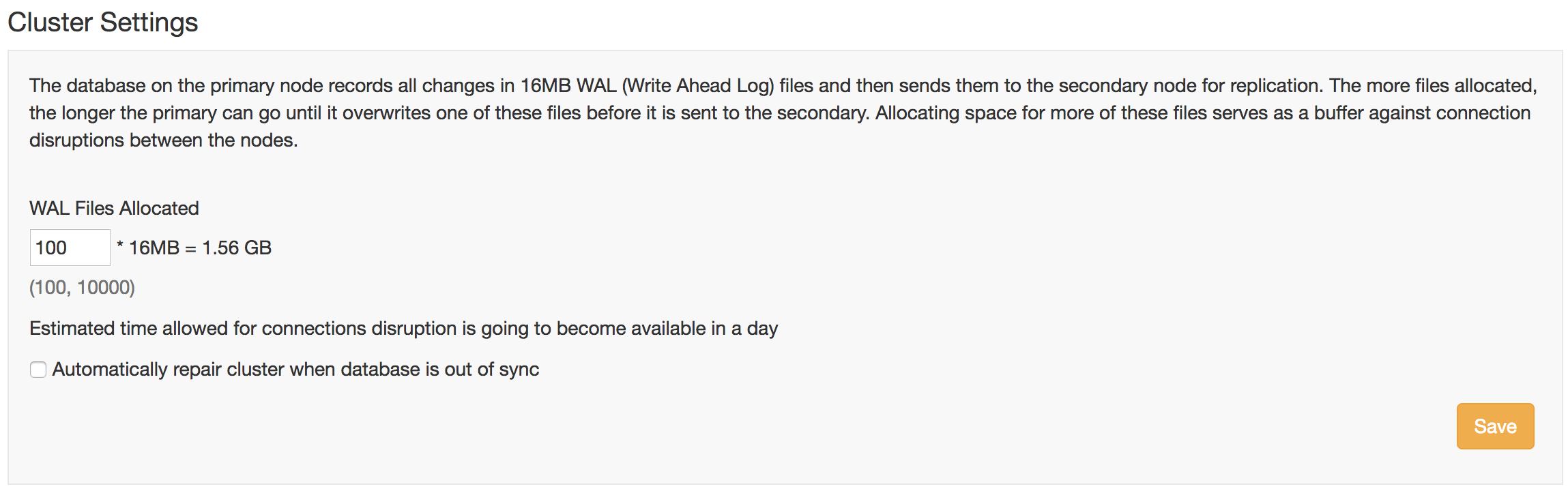
You can allocate more disk space for the Write Ahead Logs used by the database for replication in this section. More space means the cluster can survive connection disruptions between the primary and secondary for a longer period of time.
The cluster will evaluate the average rate of log production and replication to provide an estimate of this time period. This is done over the course of a day, after which point the estimate will be available.
In the event there is a connection disruption that goes longer than this estimate and the cluster breaks, you can click the Automatically repair checkbox to have the cluster to resend all of the log files and replicate the database without user intervention.
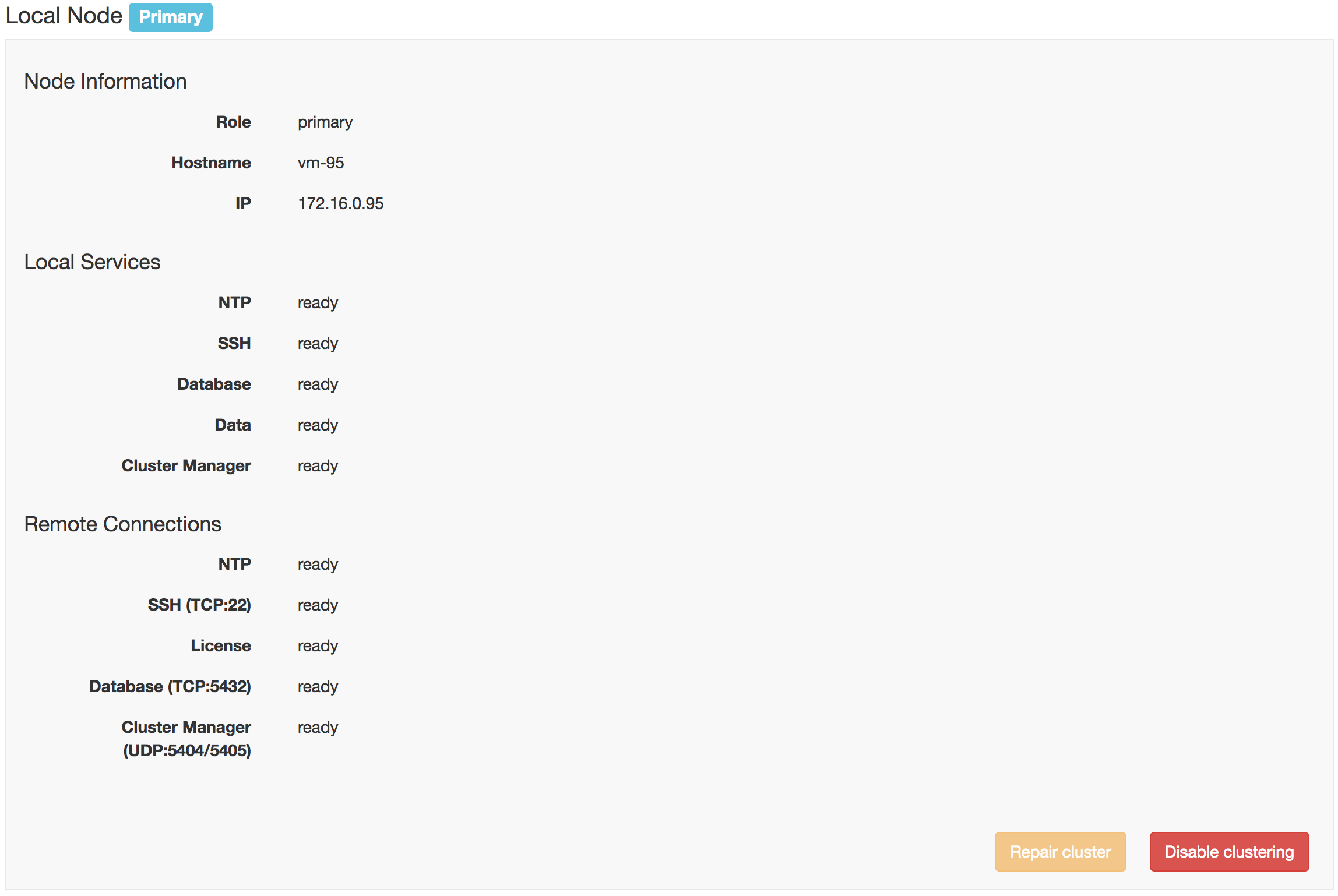
You can also click the Repair Cluster button under the Local Node status to manually repair the cluster.
Cluster repairs (manual or automatic) may temporarily make the main frontend unavailable. If you see a 502 error while attempting to log in to a clustered rWeb, please check this status page first to check if it is attempting a repair.