Group Configuration
Victim Notifications

Once you have selected a group, you can add a list of email addresses that will receive notifications of attacks in zones associated with that group. Emails are sent when they exceed the threshold for notification in that zone.
Resource Limits
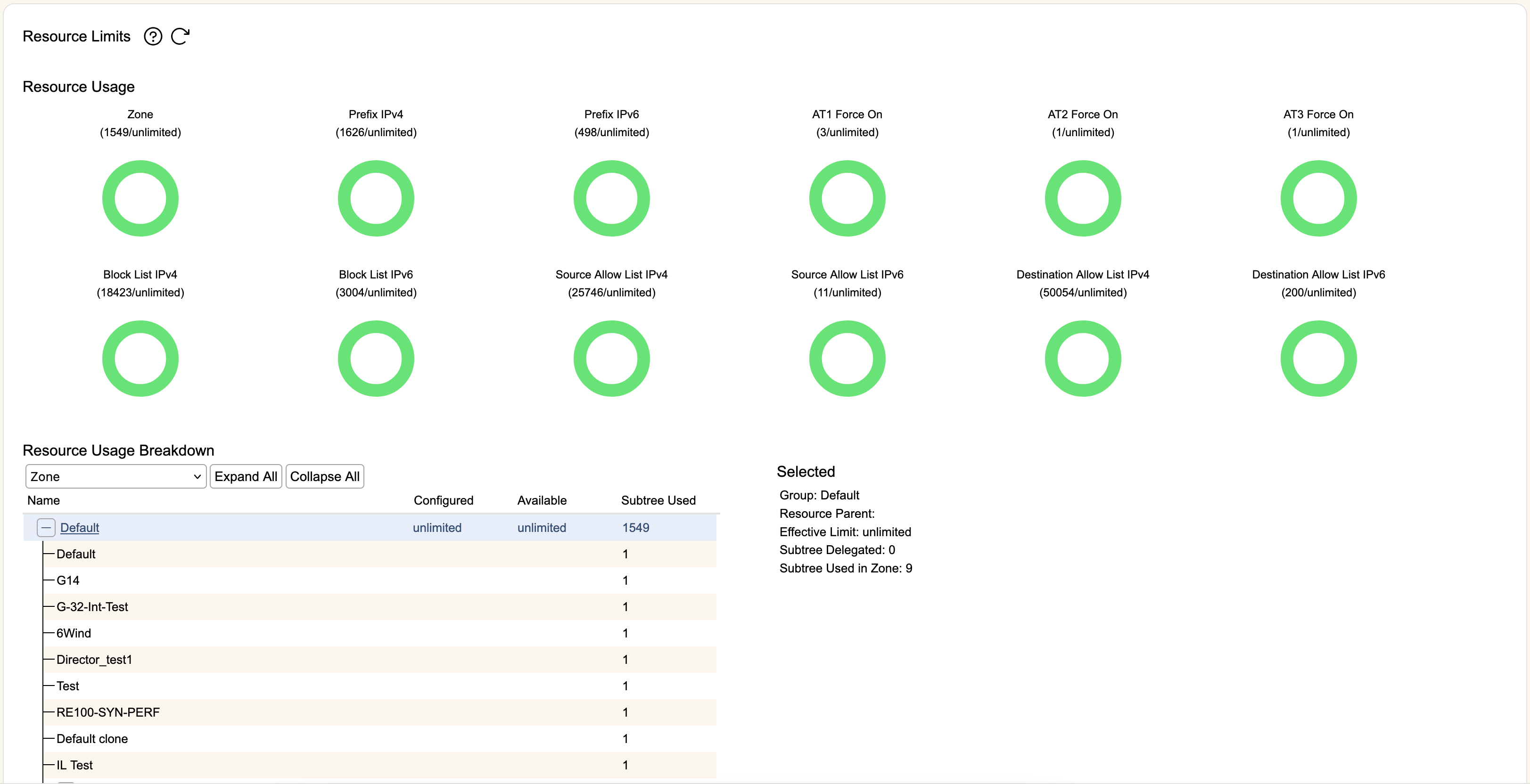
Resource Limit Categories
Group administrators can configure limits on the resources used by their child Groups. These resource limits can be set on:
- Number of Zones
- Number of IPv4/IPv6 routing prefixes
- Number of AT1/AT2/AT3 Force On entries
- Number of IPv4/IPv6 Block List entries
- Number of Source and Destination IPv4/IPv6 Allow List entries.
Resource Limits Configuration
During initial setup, the Default Group has an unlimited amount of each resource, with all children groups inheriting these limits. For any group besides the Default Group (which is always unlimited), an administrator from a parent group can impose limits on a child group, limiting the specific number of resources it is allowed to use:
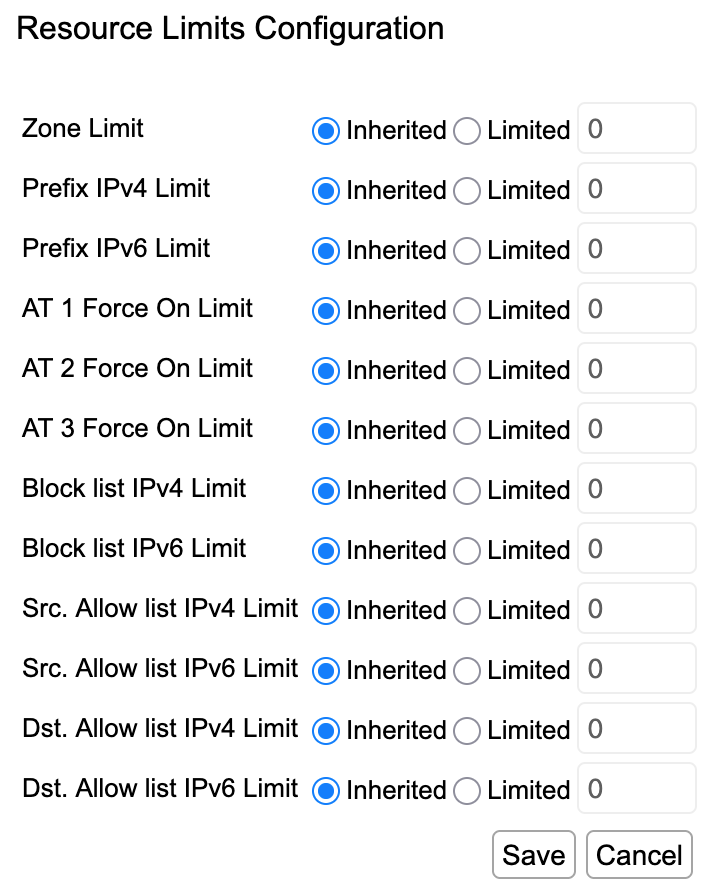
If you don't see this control, you are either looking at the Default Group (which is always unlimited), a group you don't have permissions to adjust, or the highest group you have appropriate permissions on (you can only adjust child groups' resource limits).
Once a limit has been configured, it will be imposed collectively on all child zones of that group. The dial widgets will show you your consumption across all resource limits for the current group. You can drill down further into any particular resource usage with the Resource Usage Breakdown.
Resource Usage Breakdown
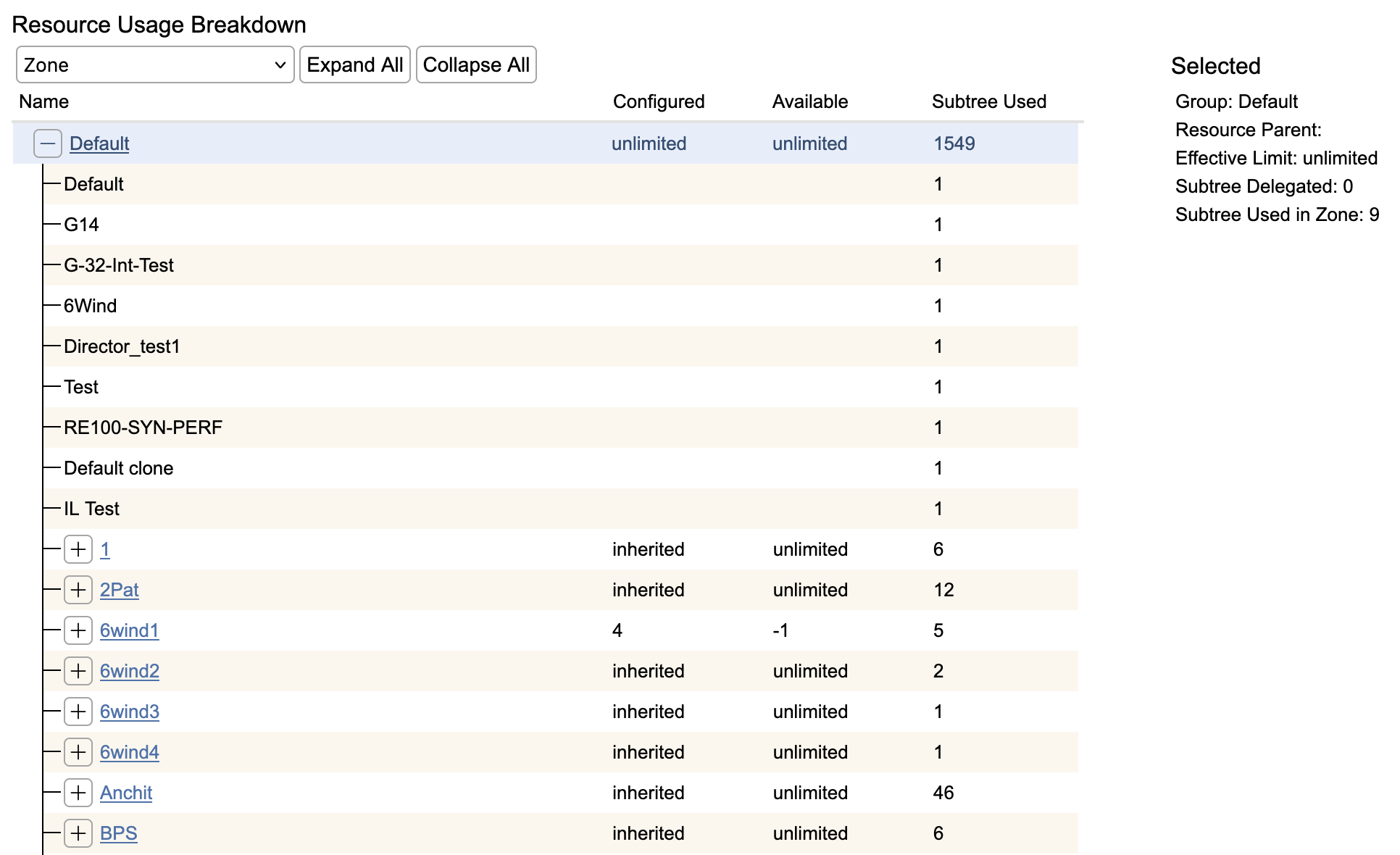
The dropdown will switch between the resource limit categories above to visualize current usage. The Expand All and Collapse All buttons will expand or collapse each of the Groups shown in the tree. Each row shows the following information:
- Name- The name of the group or zone. If the row signifies a group, it will have an expansion checkbox and be hyperlinked to the Resource Limits page for that group.
- Configured- The configured limits of the selected resource category for this group (zone rows will be blank). This will be either Unlimited, Inherited, or a numeric value. Unlimited is reserved for the Default Group as limits can't be set on it. Inherited indicates this group will use the limits of its parent. A numeric value indicates an administrator of a parent group imposed a limit for the given resource on a child group.
- Available- The remaining resources of the selected category available for this group (zone rows will be be blank). This will be either Unlimited or a numeric value. Unlimited means that no resource limits have been imposed by any ancestor groups (i.e. everybody inherited Unlimited configuration from the Default Group). If a numeric value, this will be the remaining resources of this type after calculating current usage, or more specifically Configured minus Subtree Used.
- Subtree Used- A rollup of the selected resources usage comprising the current row. If a zone, this will be how much of the given resource that zone is using. If a group, this will be the total usage of the group along with all child groups and zones for the selected resource.