Configure VM RIOS Device in rWeb
Once the VM RIOS is in "minimal" mode, it can be configured like any other device in rWeb.
- In rWeb, go to Administration->Devices, then hit Add a Device. The details for the new device will show in the right hand side of the screen.
- Enter a descriptive Name, and the IP Address you configured for the management interface. For Password, enter the default password of admin123. Hit Save.
- rWeb will attempt to connect to the device. Eventually you will be able to see the device is connected and click on the device name for more details from the list of devices under Adminstration->Devices. You should also ensure the device is not reporting NTP errors and has a good connection to its NTP server(s), as mentioned in subsection 5 here.
- In order to use the device, it will need a functional license. The console for the VM will report this fact under current status, and going to the Licensing tab for the VM will show the base install license. Most values will display with -infinity, showing they are inactive. Once created, each RIOS VM will initialize with a unique serial number. This serial number should be sent to RioRey support in order to get a license for the VM to start filtering traffic. You can copy the serial number from the rWeb's licensing screen, or it is also available on the Device Summary screen.
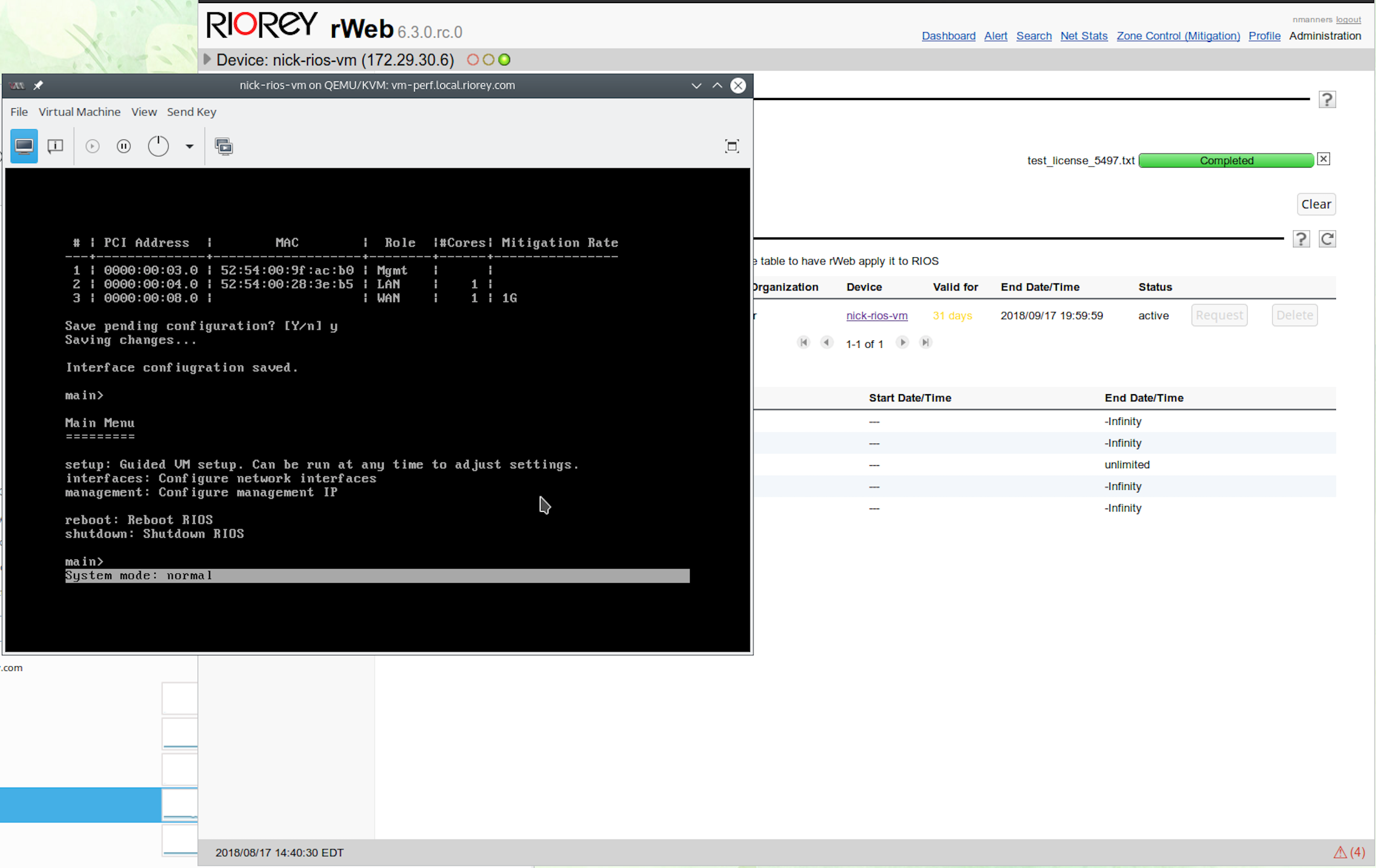
- Once you receive a license, come back to the licensing screen and Upload license files to upload the license. Once uploaded you can Request the license to make it active. If you have a subscription license, you will instead need to Pull licenses and apply. rWeb will retrieve and activate the license for you automatically. Once the license is active the device is ready for filtering operations. You will see this reflected on both the licensing screen and the console status (System mode: normal).
info
When looking at the VM's networking status, the traffic on the WAN interface should be listed under Port 1 and the traffic on the LAN interface should be listed under Port 2.
 6. Please refer to the mitigation guide for more information on how to adjust your mitigation settings for the RIOS VM in rWeb.