KVM - Create RIOS VM Device
The following guide shows how to install a RIOS VM. These instructions are shown using KVM Virtual Machine Manager, but as the RIOS VM is provided as an ISO, this could be applied to other VM environments. These instructions assume you already have the Virtual Machine Manager and the libvirt toolkit installed and running on your host machine.
To create a RIOS virtual machine:
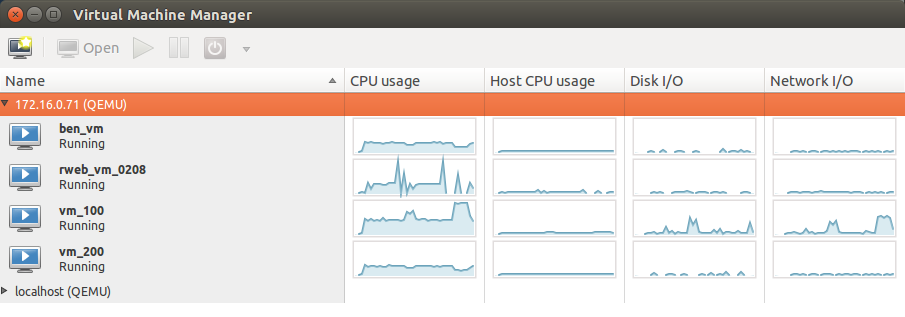
- Launch Virtual Machine Manager (virt-manager) on your KVM host server.
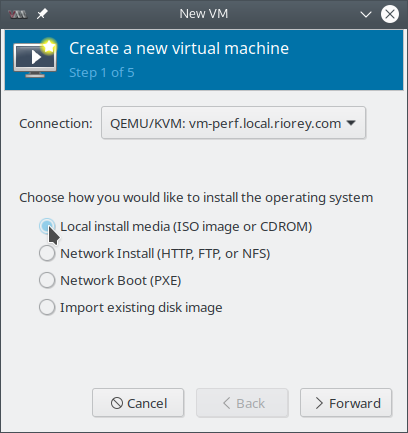
- In the toolbar, select Create a new virtual machine. Select Local install media. Ensure that Connection is set to the host machine that will be running the RIOS VM, then click Forward.
- Select Use ISO image and select the RIOS VM iso file. Leave the OS type and Version as 'Generic'.
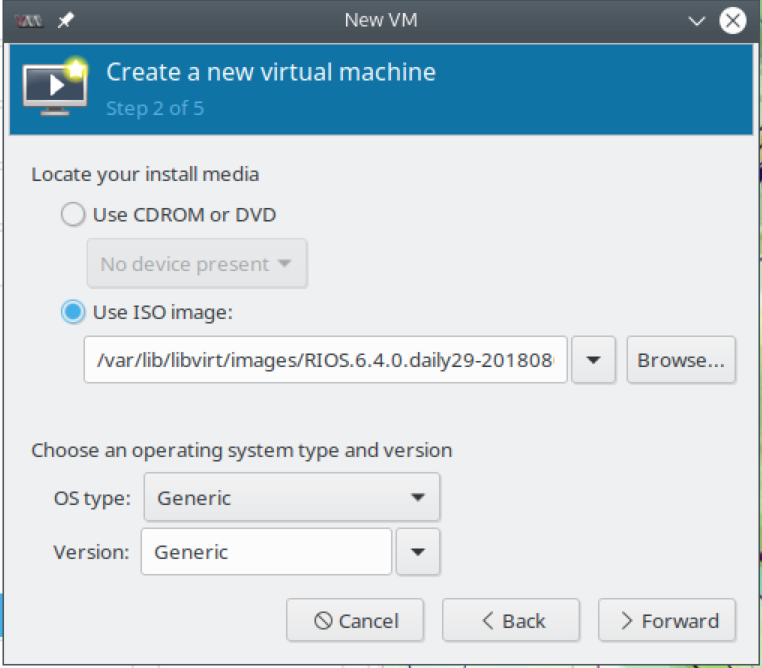
- Once the image is selected, hit Forward.
- Specify the amount of memory and number of CPUs to allocate to the RIOS VM.
info
RIOS VM requires at least 11 GB (11264 MB) RAM and at least 4 CPU. In the example screenshot below the VM was allocated 12 GB.
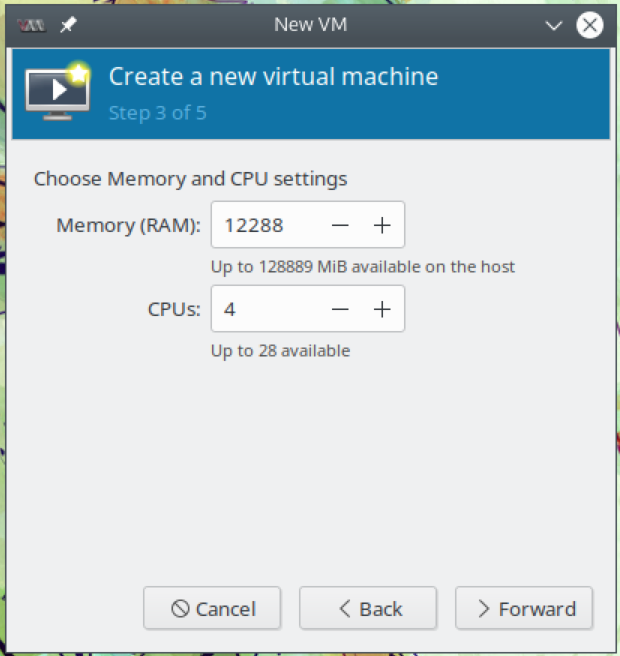 6. Hit Forward.
- Select Enable storage and make sure the VM has at least 4 GiB of disk space.
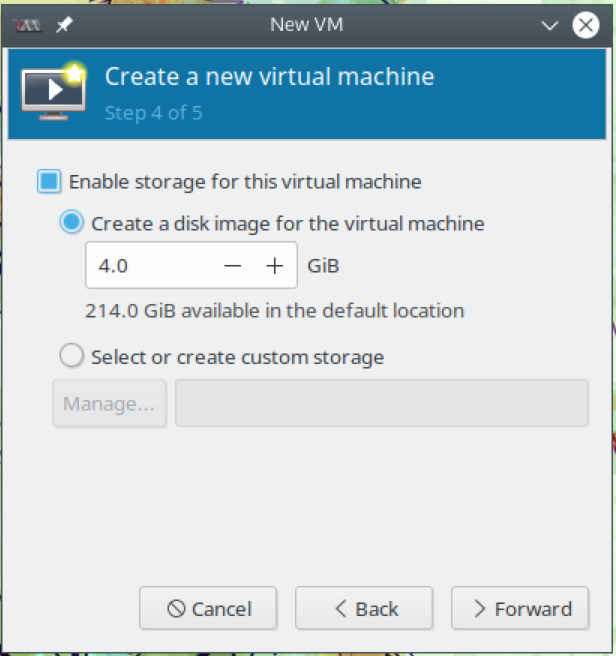
- Hit Forward.
- Enter a descriptive Name for the VM. This completes the basic configuration of the device.
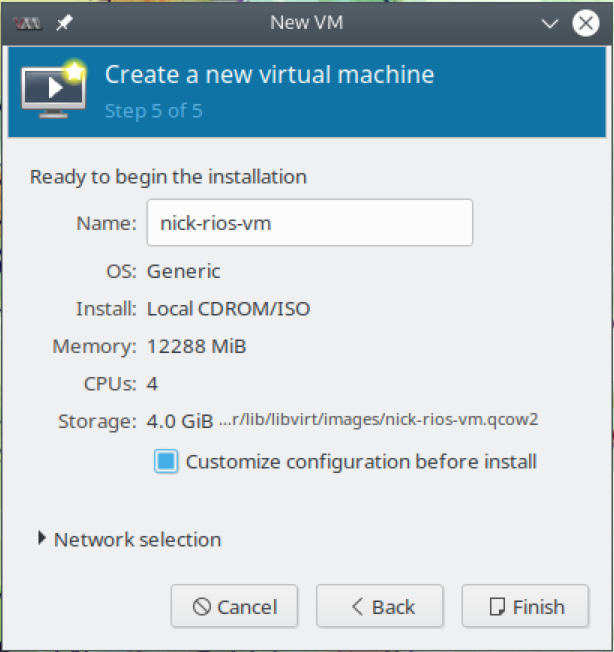
- Ensure Customize configuration before install is selected, then hit Forward to proceed with advanced configuration.
- For the purposes of this guide, we will illustrate installation of the RIOS VM by configuring it to use PCI Passthrough for the WAN interface. Before we set up the WAN interface, we will add an interface for management, reserving the already configured virtual interface as our LAN port. In this scenario, our rWeb is a physical device on a network external to the VM host, so we need something externally reachable.
- The best interface that meets our needs is a new virtual interface configured as a bridge. Hit the Add Hardware button, select Network, and select Bridge. Name it accordingly and note the MAC address used by the bridge.
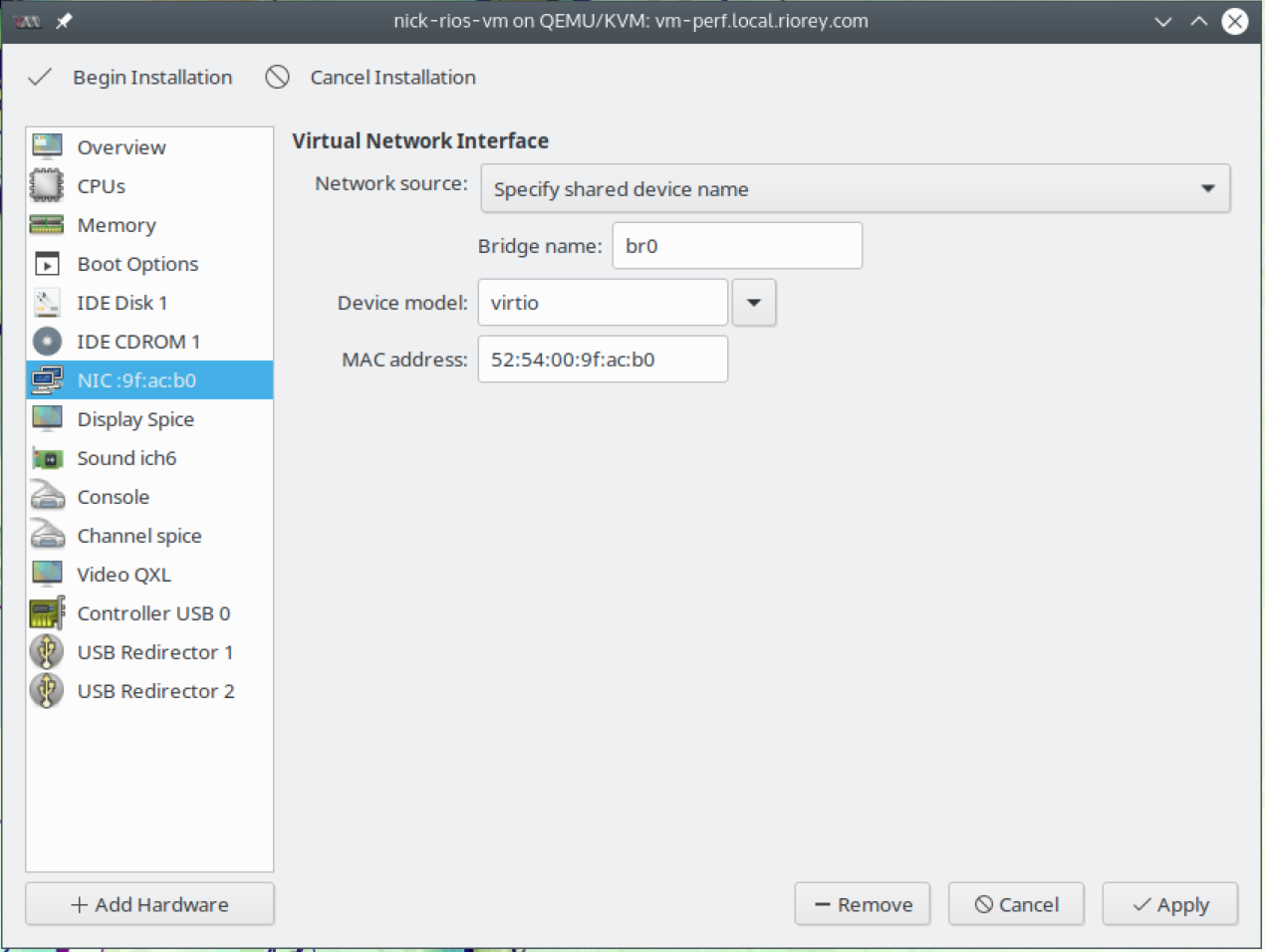
- Now we need to add the PCI Passthrough for our WAN interface. Hit Add Hardware and select PCI Host Device. Ideally your host device will have the network card labelled in such a way that you can identify which one you are using from the list of available PCI devices. In our example here our selected interface was labelled enp6s0f0.
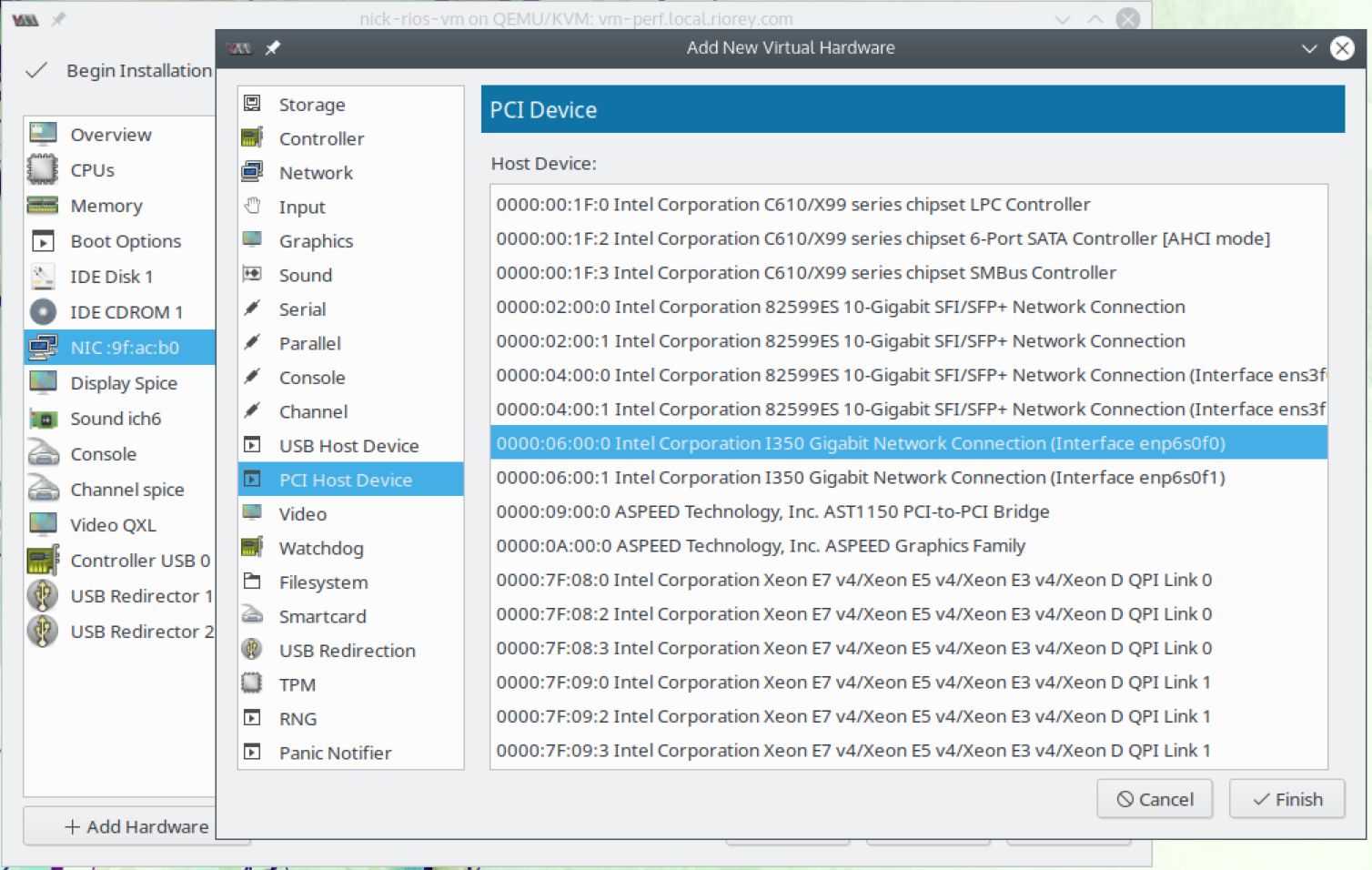
- Once you have all three interfaces configured (Management, WAN, and LAN) you can start up the VM.
Next step: RIOS VM First Time Boot