RIOS VM First Time BOOT
For the purposes of this guide, we will illustrate installation of the RIOS VM by configuring it to use PCI Passthrough for the WAN interface. Both the KVM and VMware instructions for creating the VM detail the steps required for PCI Passthrough.
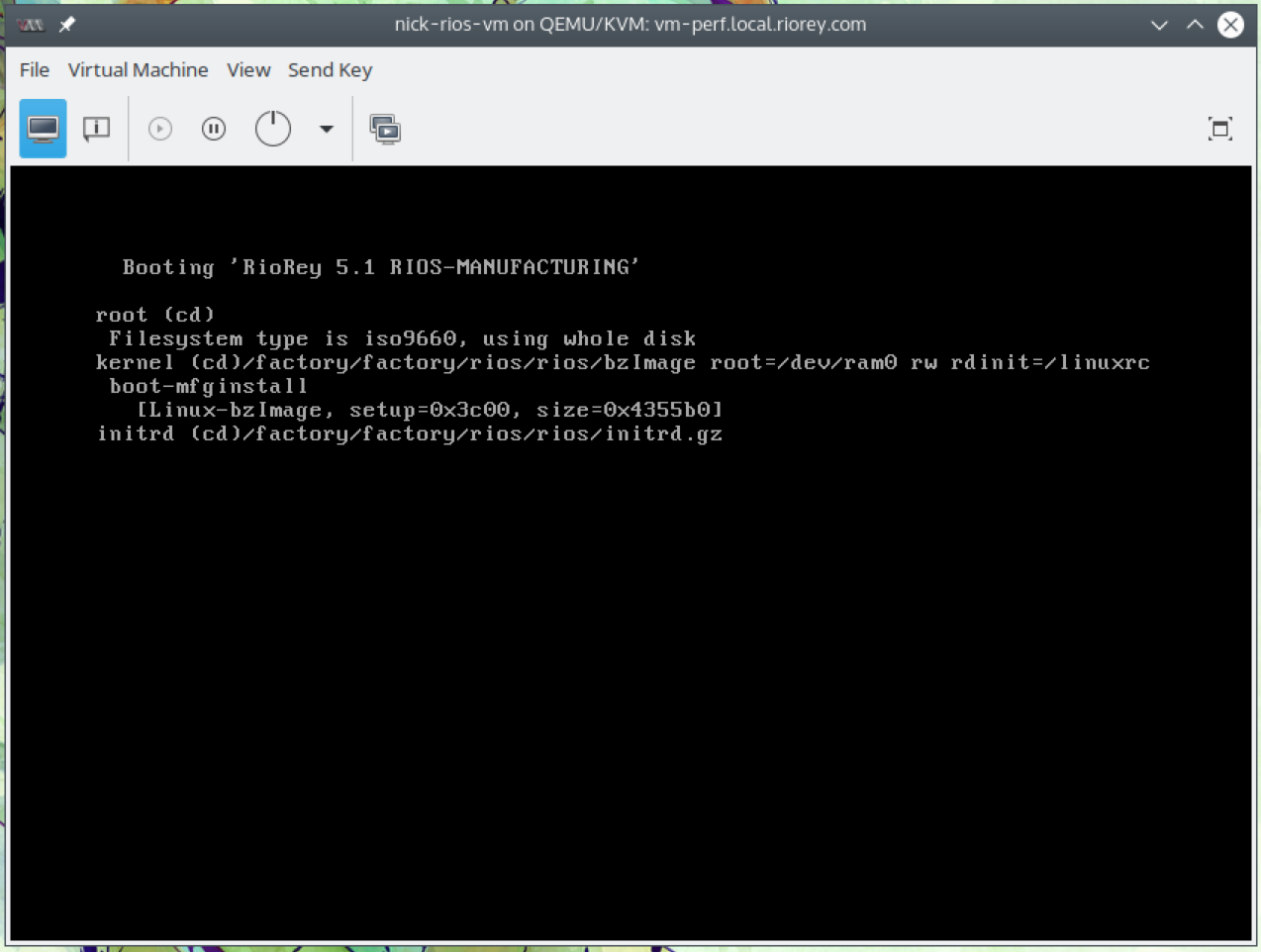
- Once fully configured, you can start up the VM. When looking at the console you should see the following:
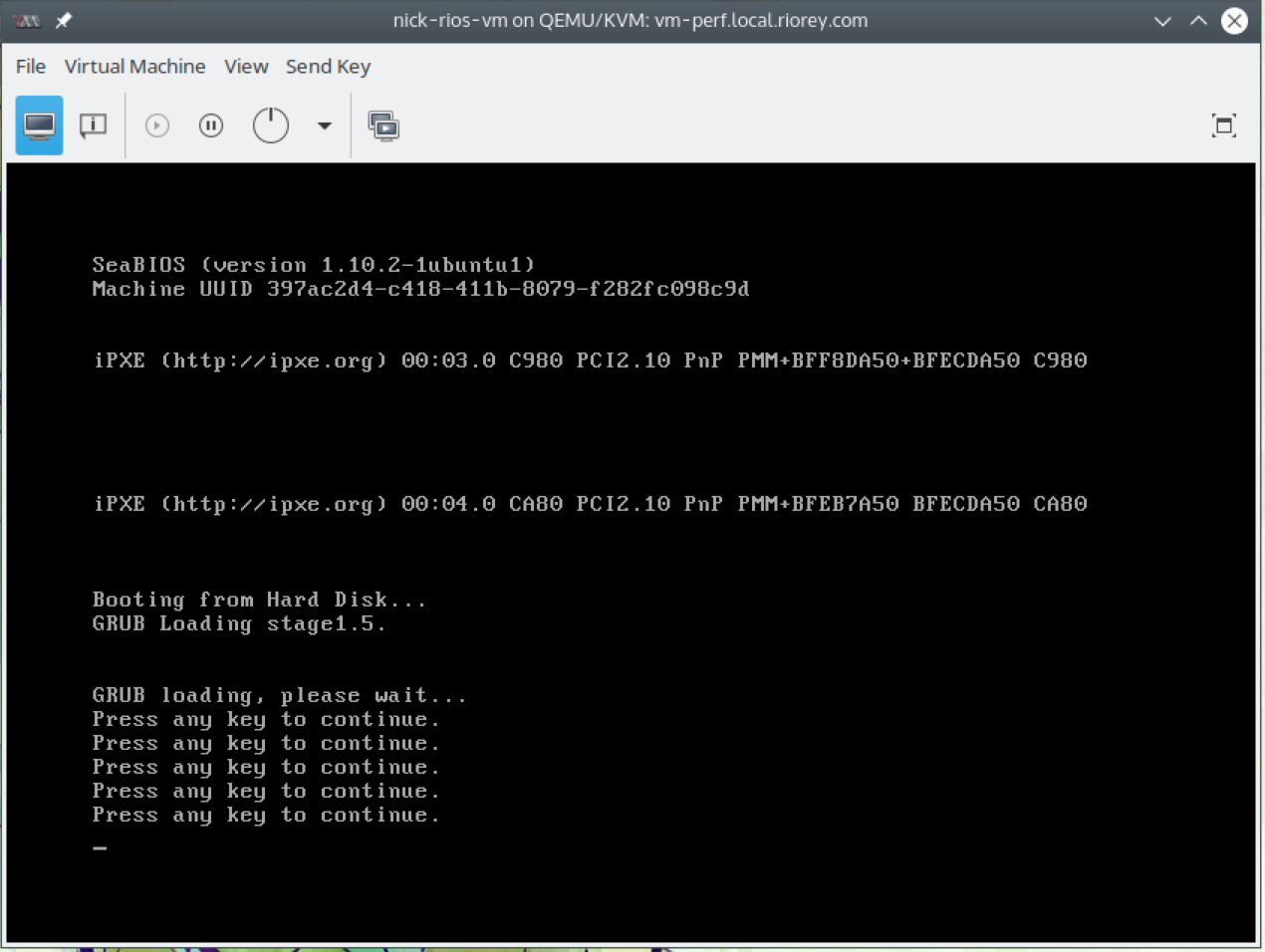
- The device performs an initial install, and then will reboot. When it reboots you will see the following screen, but do not actually hit any keys at this point:
- The device is ready for further configuration once it reaches this screen:
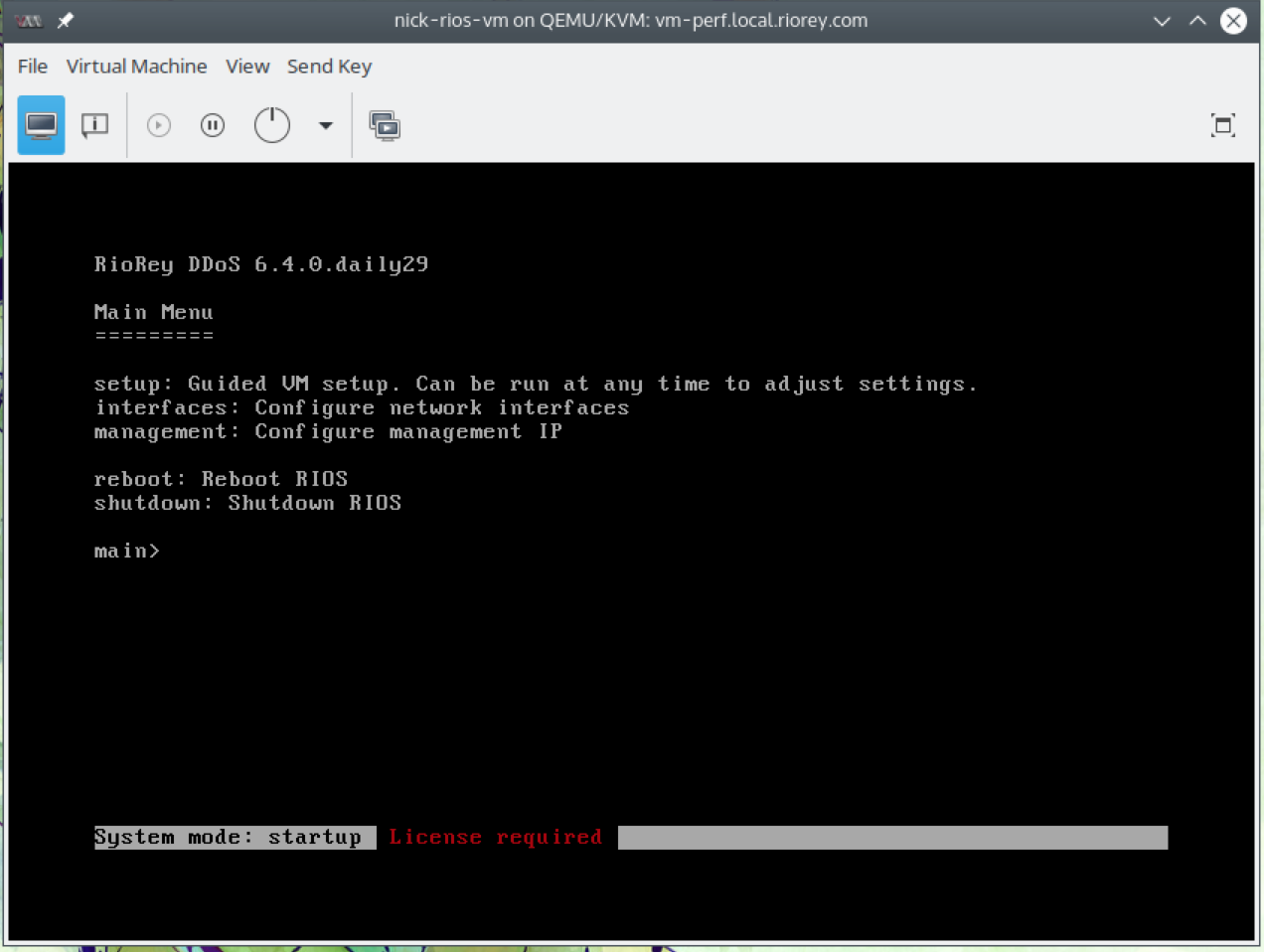
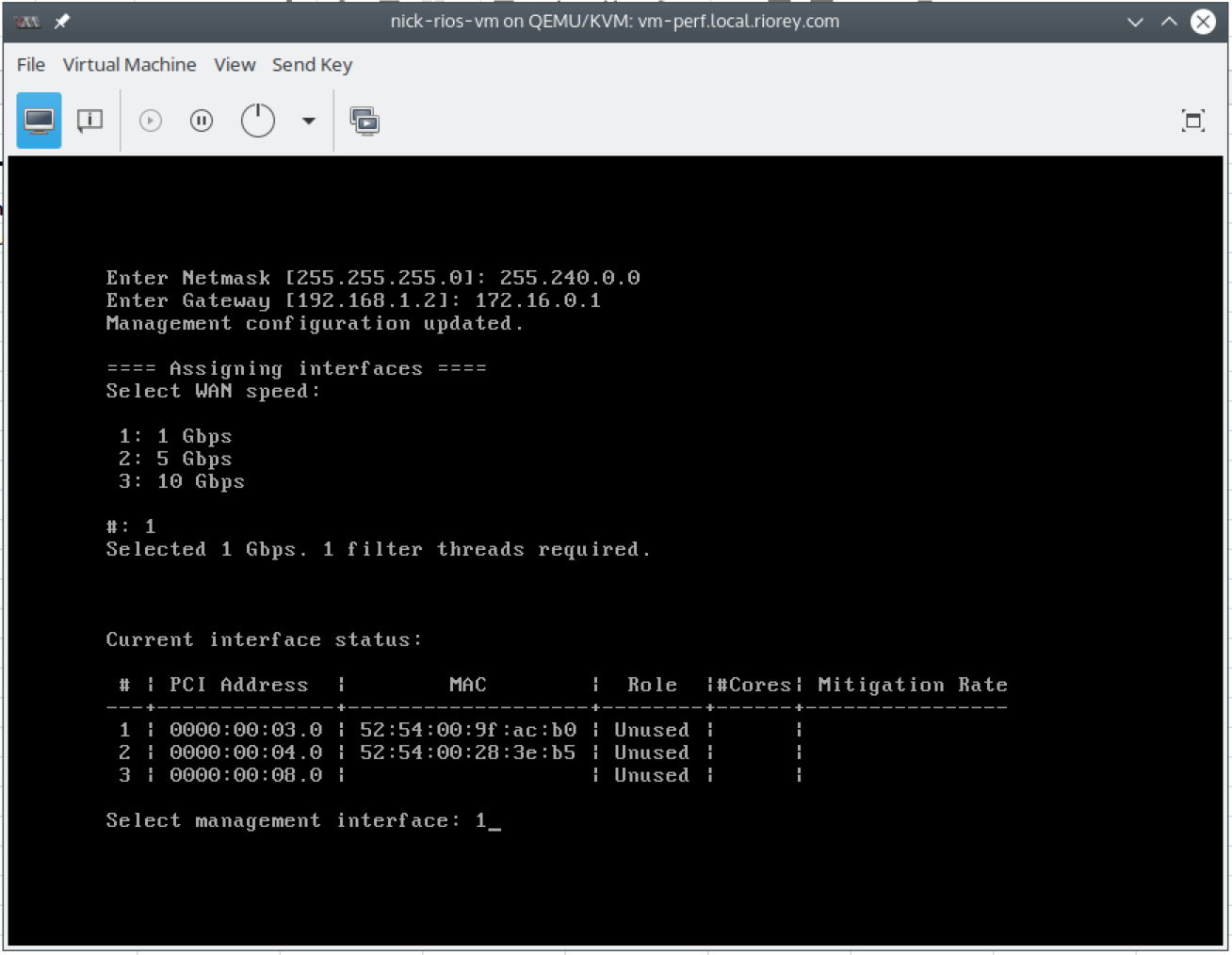
- It is recommended to use the guided setup option to perform the rest of the configuration, the final two key parts of which are to define which interfaces are associated with which role (management, WAN, or LAN) and to configure the IP address used by the management interface. Selecting the guided setup, it will first ask you to define the management IP:
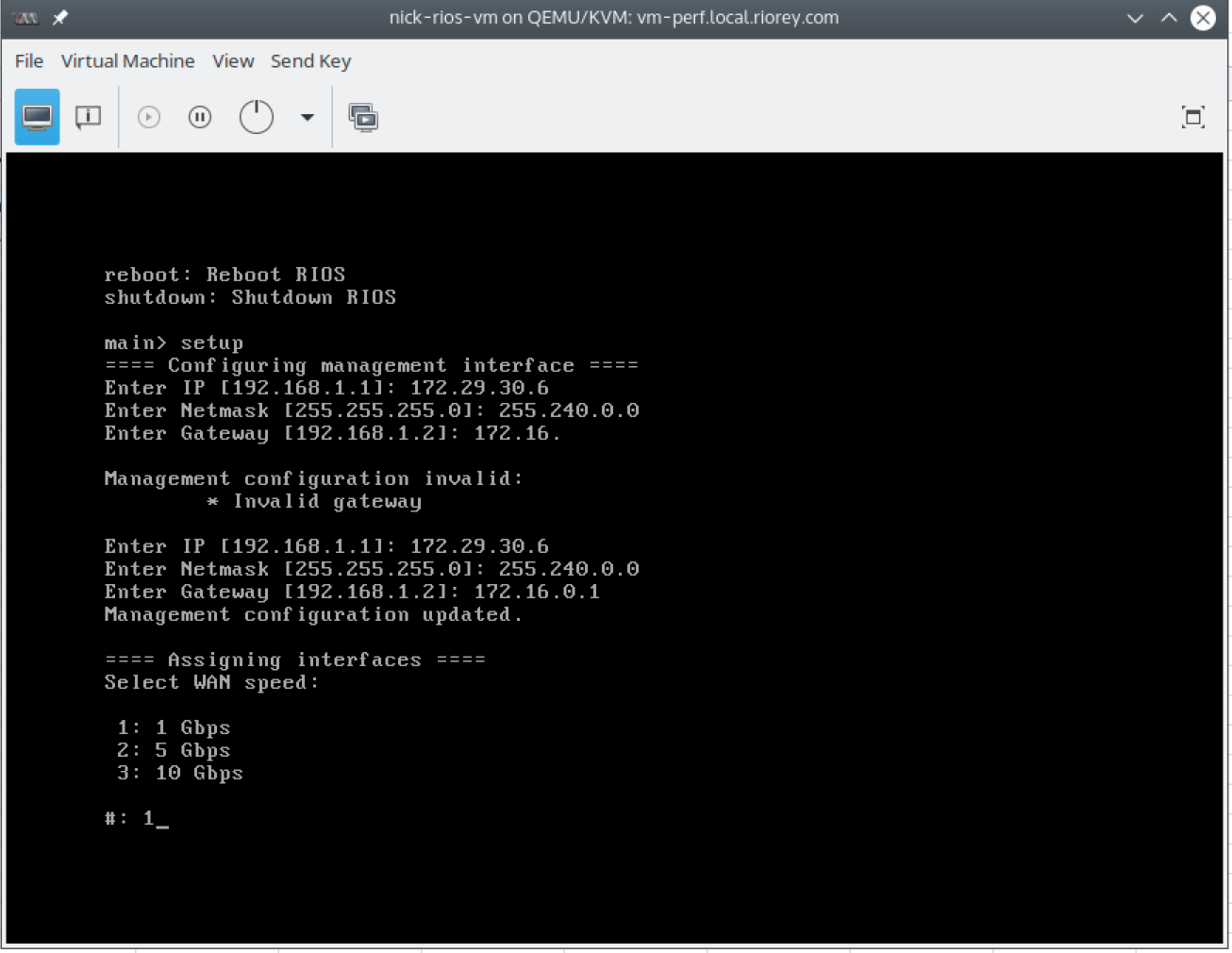
- After defining the management IP, select the WAN throughput you are using. For our PCI Passthrough device in this example, we are using a 1Gbps interface card and select that option.
Make sure your interface you are using for the WAN side can support your selected throughput, and that the VM has been allocated enough resources to run in your selected mode. The reference table showing required resources for each mode is at the top level of this guide here.
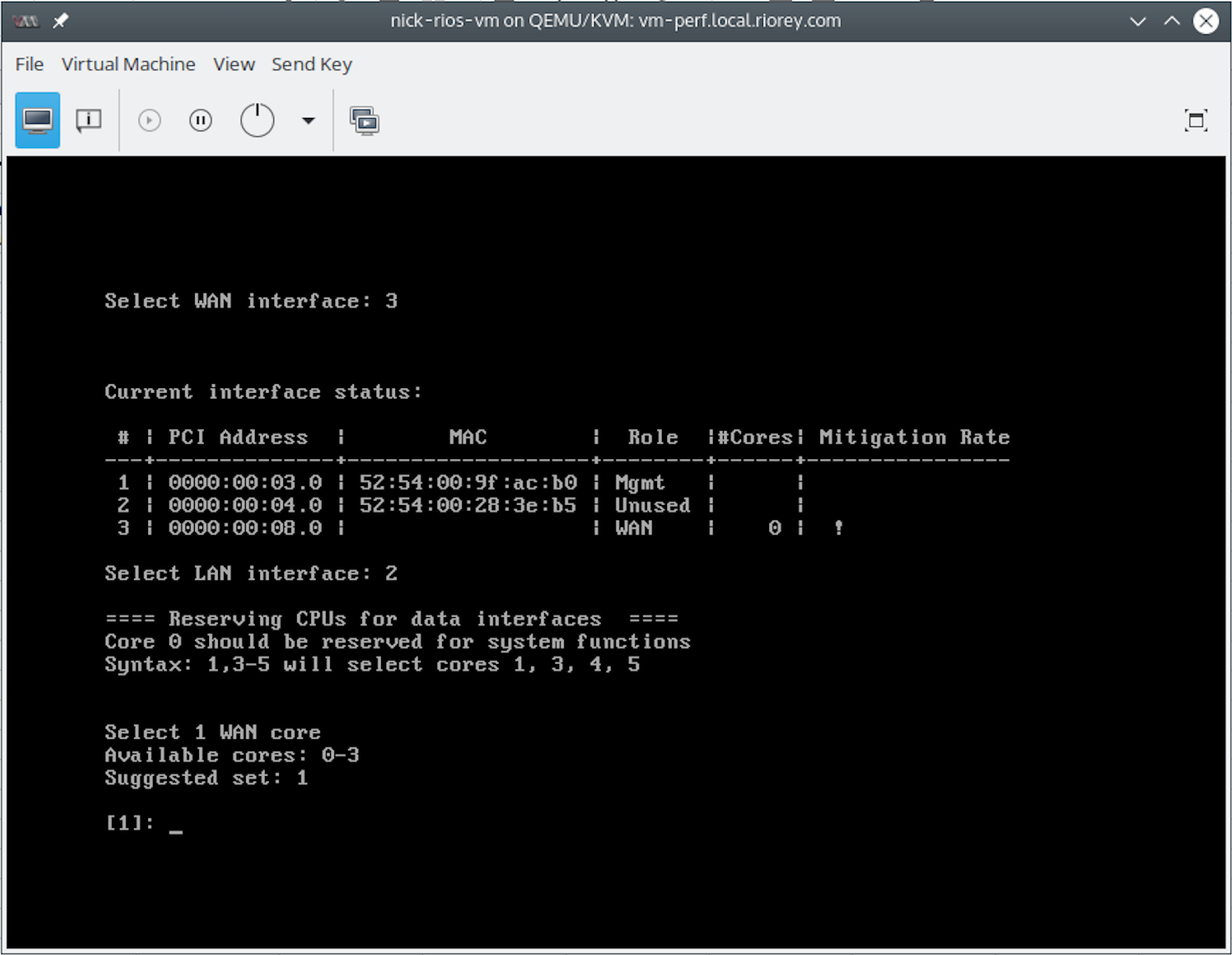
- Once your throughput is selected, you will need to associate the VM interfaces with their roles. Currently for the PCI Passthrough, the VM is not able to detect its true MAC address and thus leaves that blank. In our example here, the listed interfaces in order are our bridge interface we created (1), the original virtual network interface associated with the device by default (2), and our PCI passthrough network card (3). You will receive a prompt for each role required, which in this case maps to Management (1), LAN (2), WAN (3).
- The table will update to show you the role used by each interface. After this configuration, you can adjust which VM cores are used by which internal functions. The guided setup will automatically recommend cores (in brackets), and hitting enter without any input will accept the recommendation.
It is highly recommended to accept the suggested settings given by the guided setup.
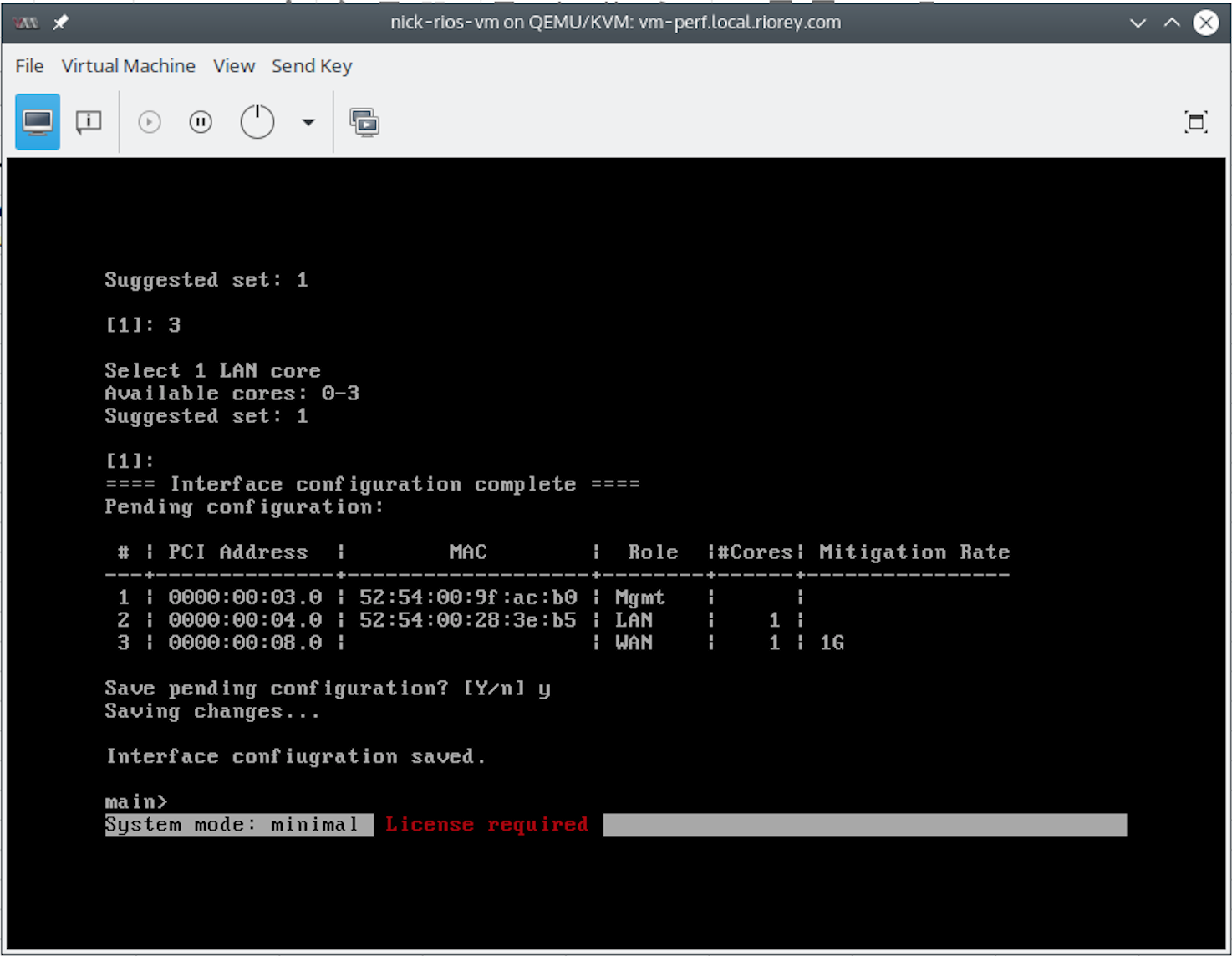
 8. Once the cores are configured, the VM should be in a ready state, and will display its current status. When it displays "System mode: minimal" it is ready for configuration in rWeb.
Next step: Configure VM RIOS Device in rWeb