RIOS Tab
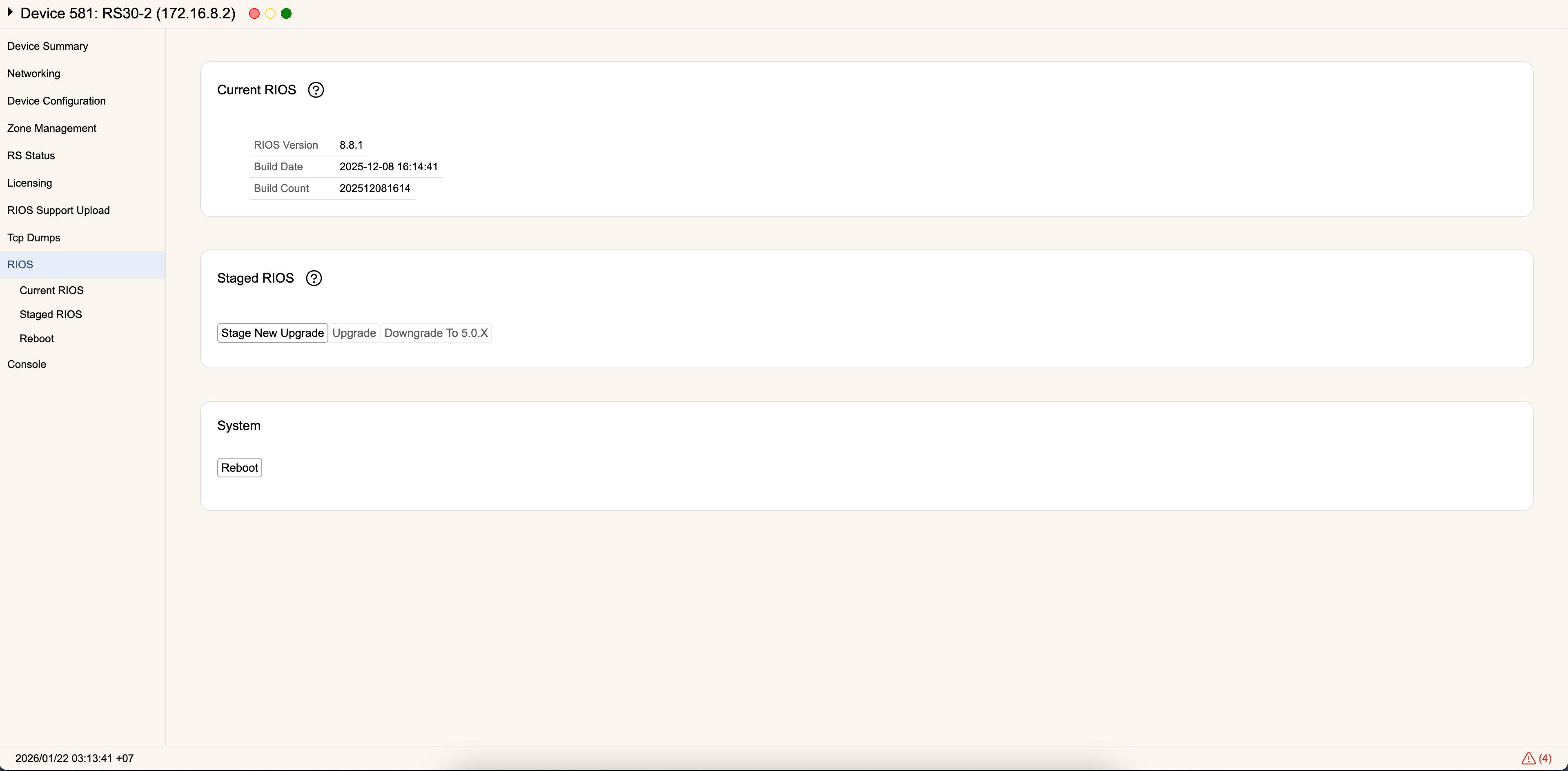
This tab is used to change the current running version of RIOS on a filter device.
Current RIOS
This section shows the current running version of RIOS and its build date.
Staged RIOS
This section is used to prepare a new version of RIOS to load on the device. Make sure the version number of rWeb is able to run the version of RIOS you are installing, or rWeb will not allow you to proceed with the installation. To find the required version of rWeb, please refer to the release notes for that version of RIOS. To upgrade rWeb, follow these instructions.
Your current loaded license must also support the version you are attempting to load. Check that the 'upgrade' portion of the license supports the version of RIOS based on its release date.
To get the latest RIOS release (or grab an earlier release) go to Download > RIOS Upgrades (located here on the login site). Download the desired version of RIOS, X.Y.Z.tgz to your local machine.
Do not untar the .tgz file. Some browsers, such as Safari, may attempt this automatically when you download files from login.riorey.com, in which case you either need to disable the behavior or try a different browser.
Upgrading RIOS
-
Click on Stage New Upgrade > Choose. All RIOS versions previously uploaded to rWeb will be displayed. To upload any versions you downloaded, hit Upload to rWeb and select the new RIOS .tgz file downloaded from the login site. The new version will be uploaded to rWeb, which may take several minutes. The new version can be an earlier release of RIOS, if desired, down to RIOS 5.7. Certain devices may have a minimum required version.
-
Select the new version once it appears on the list, click the Stage button and wait for the status to read "Success". The Staged RIOS version number, Build Date, Build Count will be displayed once the new RIOS version finishes uploading to the filter device.
-
Click the Upgrade button, and wait for the button to first become disabled as the upgrade process begins, and then become re-enabled as rWeb reconnects with the RioRey device after it reboots. This may take several minutes.
Devices with a bypass and "Enable bypass on power loss" configured will automatically bypass traffic during this step. If your device doesn't have or support a bypass you may need to redirect traffic during this time as the device links will remain down until the upgrade is complete.
-
Refresh the screen (wait for an additional minute or two). The Current RIOS version should show the upgraded version. If the version reads "unknown", wait another minute or two before refreshing again to verify that the correct version is displayed.
-
After the RioRey device reconnects, if the Current RIOS still displays the version number before the upgrade, then the upgrade did not complete. Retry from step 3 if the Staged RIOS version is still there. If not, retry from step 1.
Devices with a bypass and "Enable bypass on power loss" configured will automatically re-enable normal filtering once normal operating mode is reached. If you had to redirect traffic because you don't have a bypass you should send it back through the device once it is in normal mode.
Devices that don't reach normal operating mode and re-establish communications with rWeb will automatically revert to their previous operating version as a protective measure against failed upgrades. This can also happen if you prematurely reboot the device during an upgrade cycle.
Reboot
This section lets you trigger a manual (hot) reboot of the RIOS filter device.