Search
IP Search will query all selected data sources for the entered IP. You can check reported attackers, victims, and configuration items for the referenced IP.
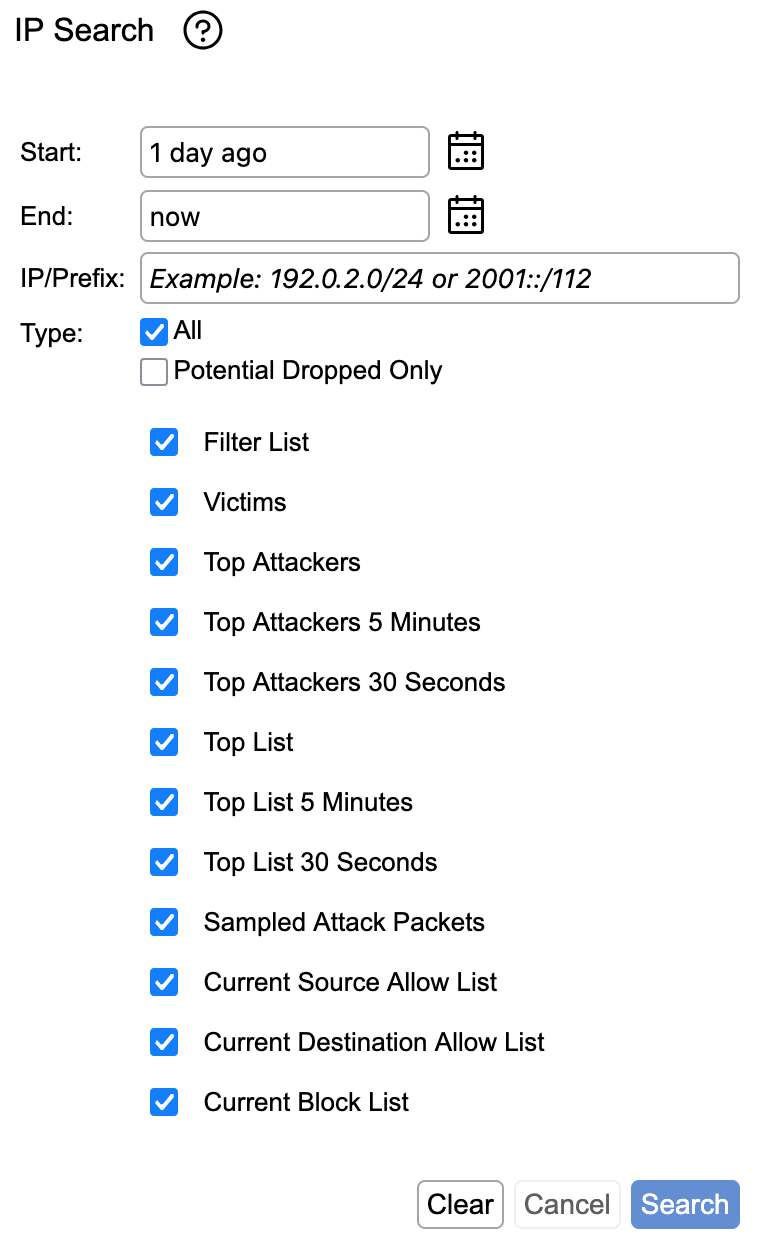
Start and End are the dates between which data will be searched. You can use the calendar icon to select a specific date and time, write an entry in the format "X year/month/week/day/hour/minute ago", or use "now" to indicate current time.
IP/Prefix is the IP or subnet you are searching for information on. An IP without a CIDR mask will default to /32 (/128 for IPv6).
Type is a shortcut that selects the configuration items/history to search for. All will select all items, while Potential Dropped Only will select items that would indicate if traffic involving the specified prefix might have been dropped (Filter List, Victims, Top Attackers, Current Block List).
Search Categories
The full list of items that can be searched are:
- Filter List- This will search the filter list for the requested IP/Prefix.
- Victims- This will search each zone for declared victims.
- Top Attackers- This will search each zone's top attackers list. You can separately search between the 30 second, 5 minute, or default 30 minute intervals.
- Top List- This will search each zone's top list for the IP/Prefix in each of the Top List categories. You can separately search between the 30 second, 5 minute, or default 30 minute intervals.
- Sampled Attack Packets- This will search through all packet samples that were captured for attack testing purposes. However, since this is a sampling process, a result in this category does not necessarily mean the sample in question was part of an active attack.
- Current Source Allow List- This will search each zone's source allow list entries.
- Current Destination Allow List- This will search each zone's destination allow list entries.
- Current Block List- This will search each zone's block list entries.
Hitting Search will start a search using your parameters. Below the buttons a progress bar will appear for each selected search category, showing the search results on completion. Hit Cancel to stop an in-progress search, and Clear to remove the results of a previous search.