User
This dropdown provides information on the currently logged in user. The current username will be displayed at the top of this menu.
Profile
This section shows information pertaining to your currently logged in user.
User Roles
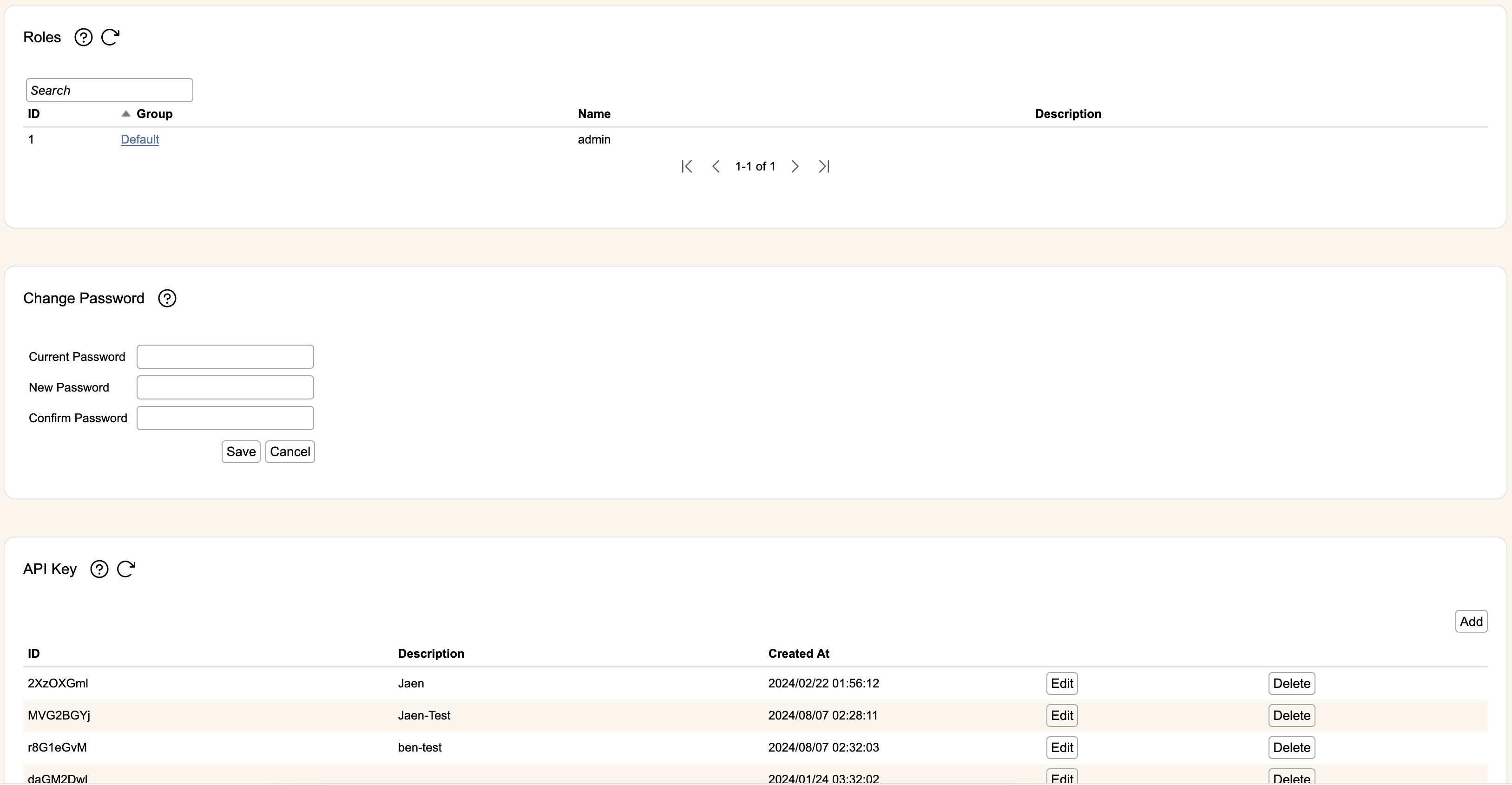
The list of roles currently assigned to your user account are populated in this table. It will show you the owning Group, the Name of the role, and the description. Click the Group hyperlink to go to the information page for that group.
Clicking on a role populates a drop down that shows your explicit permissions for that group.
Change Password
For local users only (users not using a separate authentication server), they can use this section to change their password.
To change your password, enter your Current Password, then your desired new password into both the New Password and Change Password sections, then hit Save. Hitting Cancel will clear all entries.
API Key
If enabled, you can create API keys for simple authenticaiton to the rWeb API.
API keys will be tied to the your current roles and permissions.
When creating a new key, a pop up will provide the token value with a reminder to copy it down before closing the pop-up. Once closed, you won't be able to retrieve the API key afterwards. Your only options will be deleting the entry and creating a new token.
Preference
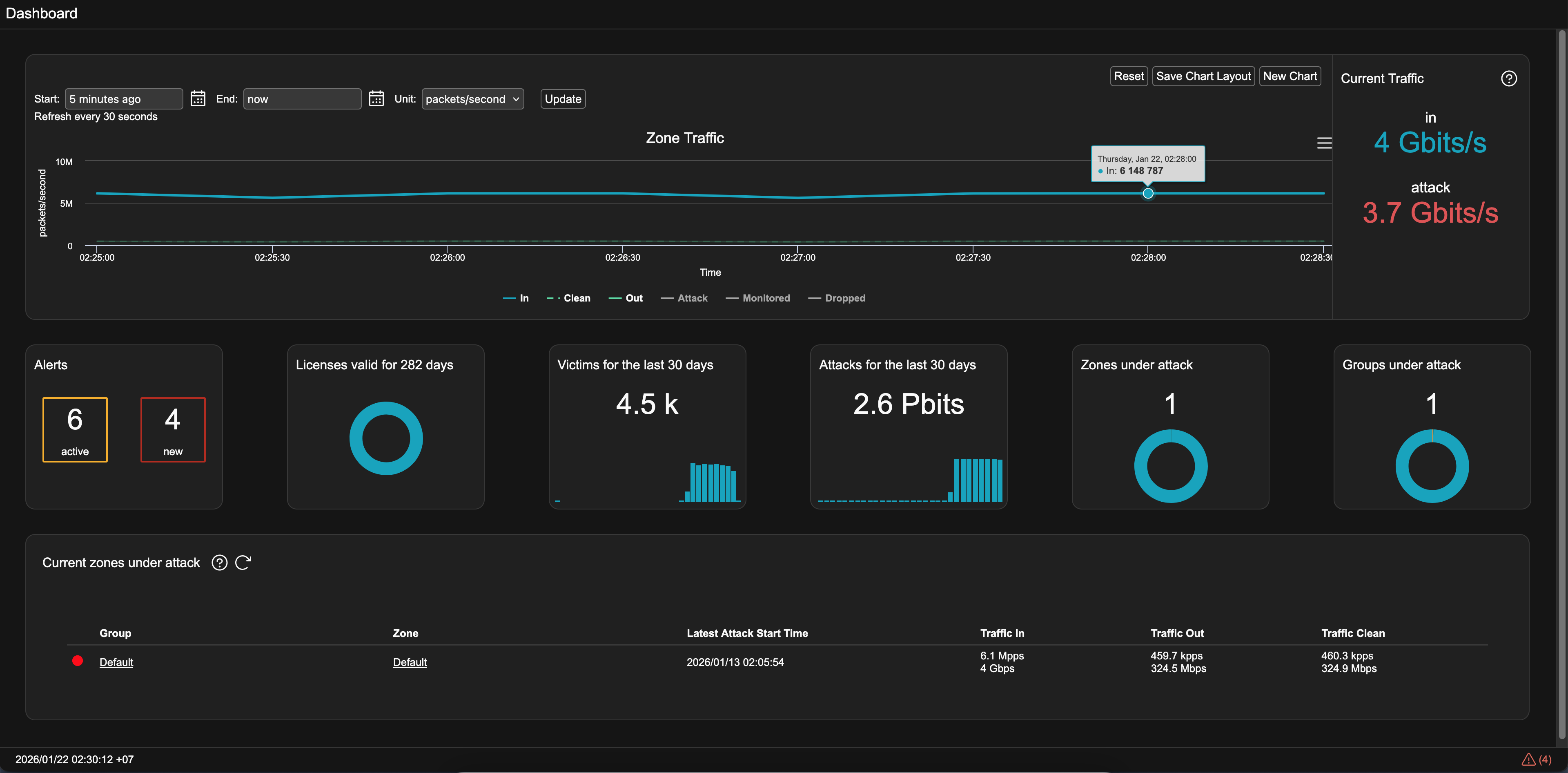
Users can select their preferred theme while using rWeb. By default users will log in using Light Mode but can switch to Dark Mode here. Below is what the main Dashboard looks like in Dark Mode:
Logout
If the user is not logged in using an OpenID Connect Provider with local logout disabled, the Logout option will be available. Selecting this option will log the user out of rWeb.