Zone Victim Tab
The Zone Victim Tab provides detailed information about DDoS attacks that are directed at specified victims. You can use this tab to look at victims currently under attack or on a historical basis.
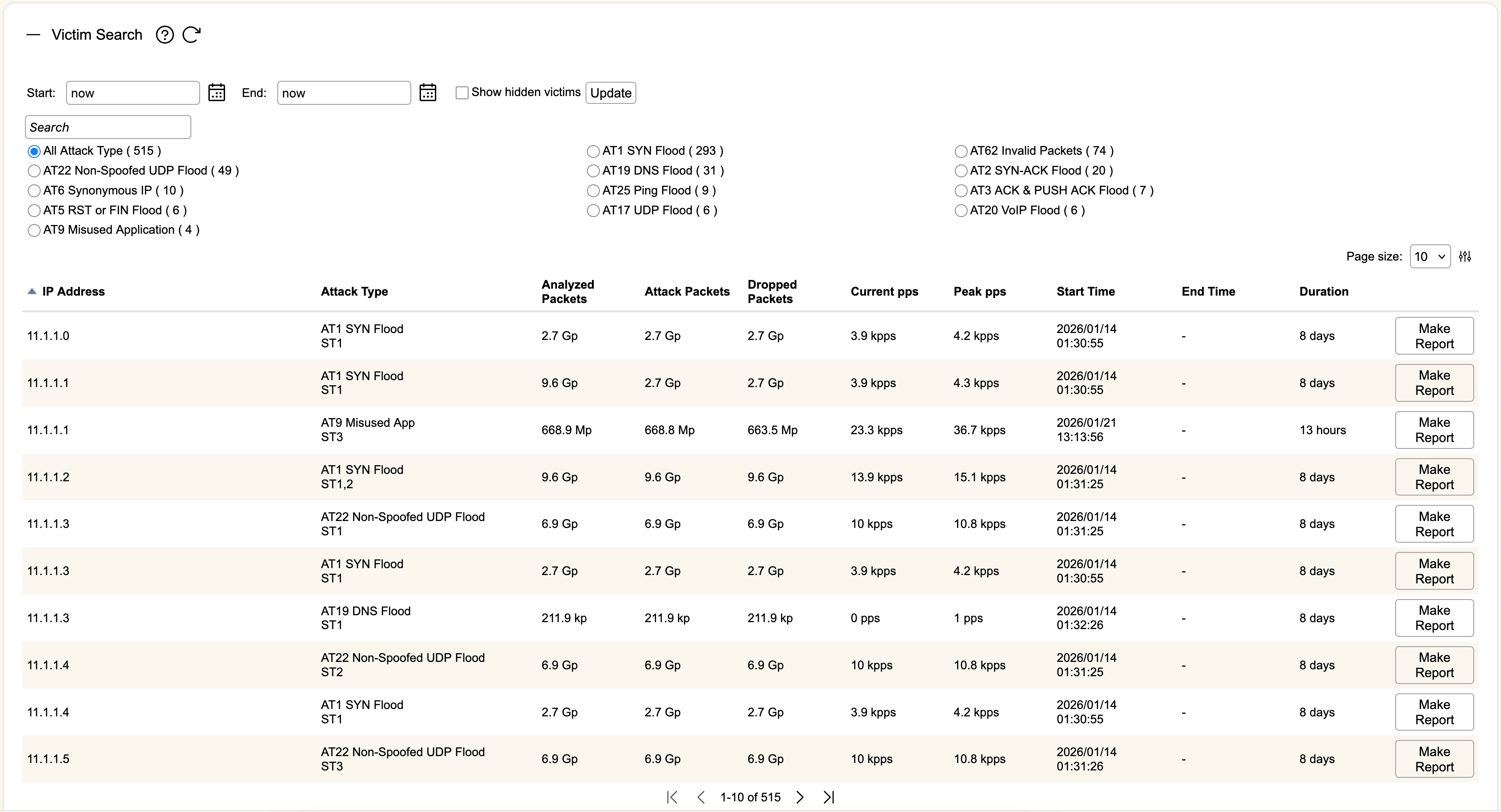
Victim Search
This section lists all victims for the time period chosen using Start and End, and whether or not to Show hidden victims. Hidden victims are those who don't meet the threshold set for displaying victims. Hit Update to refresh the list of victims. You can click on the '-' sign by the Victim Search header to minimize this section and bring the Selected Victim section to the top of the page.
The victims within the selected time period will be summarized by a series of radio buttons. Each button shows the primary Attack Type of the victim with the number of victims of that type in parentheses. By default the radio button for All Attack Type will be selected, showing all victims within the time period (or hiding ones that don't meet the display threshold if Show hidden victims is not selected). Selecting the radio button for any other attack type will further populate the Sub Types list for that attack type, giving a total count of each of the different sub types observed for victims of that attack type, as well as filtering the table to below to only show victims of that attack type. There is also a Search bar can be used to look through the list for a specific victim IP, which will search through victims of the currently selected Attack Type.
The top of the table has a dropdown menu for Page Size, as well as a slider icon. Clicking on the icon brings up a checkbox of entries that can be shown for each victim in the table.
By default, each entry will display the victim's IP Address, the Attack Type detected, Analyzed Packets processed by the algorithm, the Attack Packets that were detected, Dropped Packets, Current pps (packets per second), Peak pps, the Start Time and End Time of the attack, and the calculated Duration the attack.
The last button, Make Report, will generate a victim report. Once clicked, it will queue a report for generation, and optionally take you straight to the group reporting page to access the completed report.
Selected Victim
This section displays the currently selected victim from the Victim Search list. Further details about the Selected Victim will be shown under Sample Packets and Zone Traffic Summary.
If you clicked on the victim detail link from the Victim Summary section for a Zone, this section will be at the top with the Victim Search section minimized. Click on the Victim Search header bar to open that section again.
Sample Packets
The Sample Packets section contains all sampled traffic from attackers to the victim IP. Each entry will show the Attack Type and relevant subtype of the packet, Source IP (and AS and CC), Protocol of the packet, Port (destination), and the Timestamp of when the packet was sampled.
Clicking the "square and arrow" icon will open a new window with the captured packet. Clicking the magnifying glass icon will display the captured packet below the list of Sample Packets. This will also give you the option to Export all of the packets captured for this attack.
The Search attacker IP box allows you to enter a specific IP address to see if a sample was captured from that source IP address.
Sample packets, if available, for filter list attacks may include packets of a different protocol than the attack type describes. This is because filter list entries drop all packets from the source to the victim. In most cases devices won't send sample packets for filter list attack types, as once a source IP is on the filter list all further traffic to the victim is dropped for the duration of the entry and samples would have limited diagnostic utility.
Zone Traffic Summary
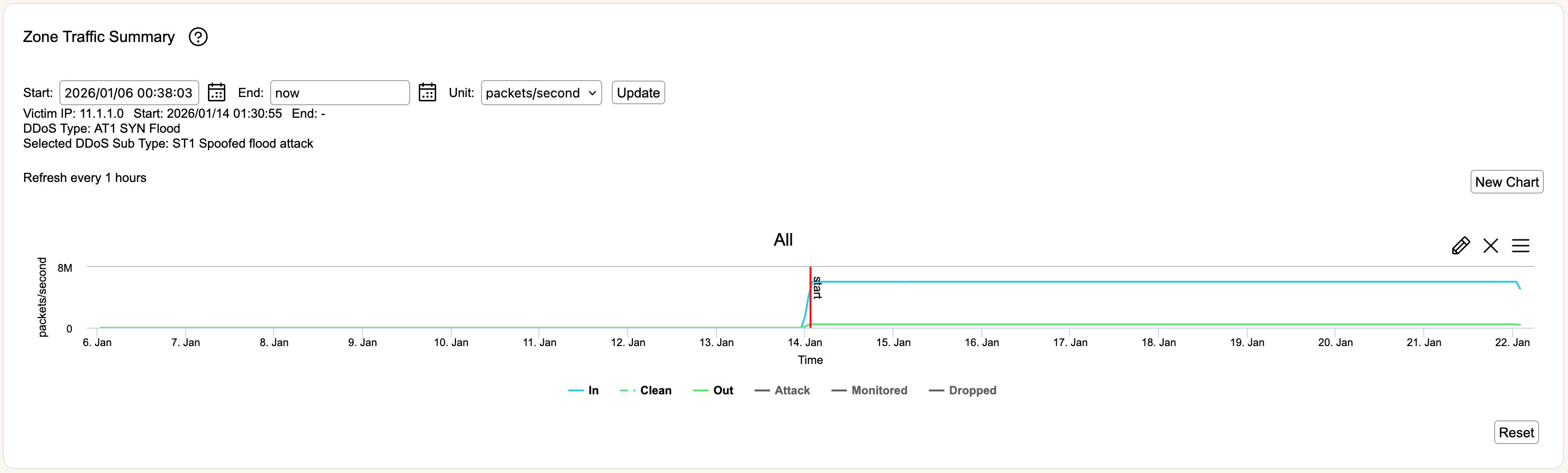
The Zone Traffic Summary displays the Traffic Summary graph from the Zone with the Start and End (if the attack is not still ongoing) of the attack against the Selected Victim shown as red lines on the graph.