Group Reporting
rWeb can generate manual or automated reports of concluded attacks for specified groups, zones, or victims. If using emailing for reporting, make sure the SMTP server is configured first.
Reports
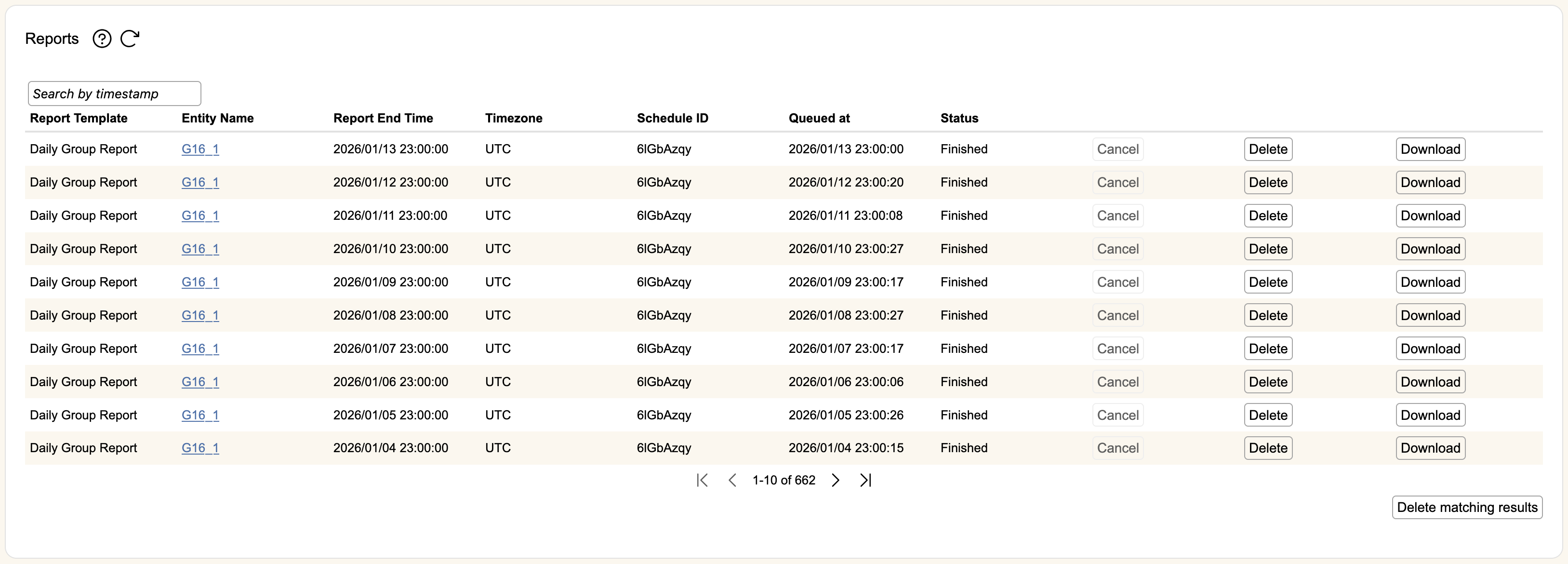
The top level Reports section shows all reports that are queued, currently running, canceled, or completed. The table lists all of the details about the report:
- Report Template- The template used to run the report. See report templates for a more detailed explanation between the different types.
- Entity Name- The entity the report was generated for. If a victim, clicking the link will bring you to the victim detail page. If a zone, the link will bring you to the zone control panel. If a group, it will bring you to the group page.
- Report End Time- The end time used in the report window. This changes based on the actual report. Specifically, victim reports for ongoing victims will generate with an end time a little earlier in order to ensure accurate data.
- Timezone- The Olson timezone used to represent times in the report.
- Schedule ID- If a scheduled report, this will show the scheduled ID from the scheduled reports section. Otherwise, it will show "Instant Report".
- Queued at- When the report was put into the reporting queue. Reports are generated on a first come, first served basis across all groups in rWeb.
- Status- The current status of the report. This can be "Queued", "Running", "Cancelled", "Failed" or "Finished".
- Cancel- This button can be used to cancel queued or running reports.
- Delete- This button will remove the entry from the table entirely. If a finished report is deleted, you will no longer have access to the generated report.
- Download- This button is used to download the pdf of any finished report.
You can search reports by their "Queued at" timestamps in the Search by Timestamp bar at the top of this section. Delete matching results will delete all reports filtered this way, or every report for the group if no search criteria is entered.
Scheduled Reports
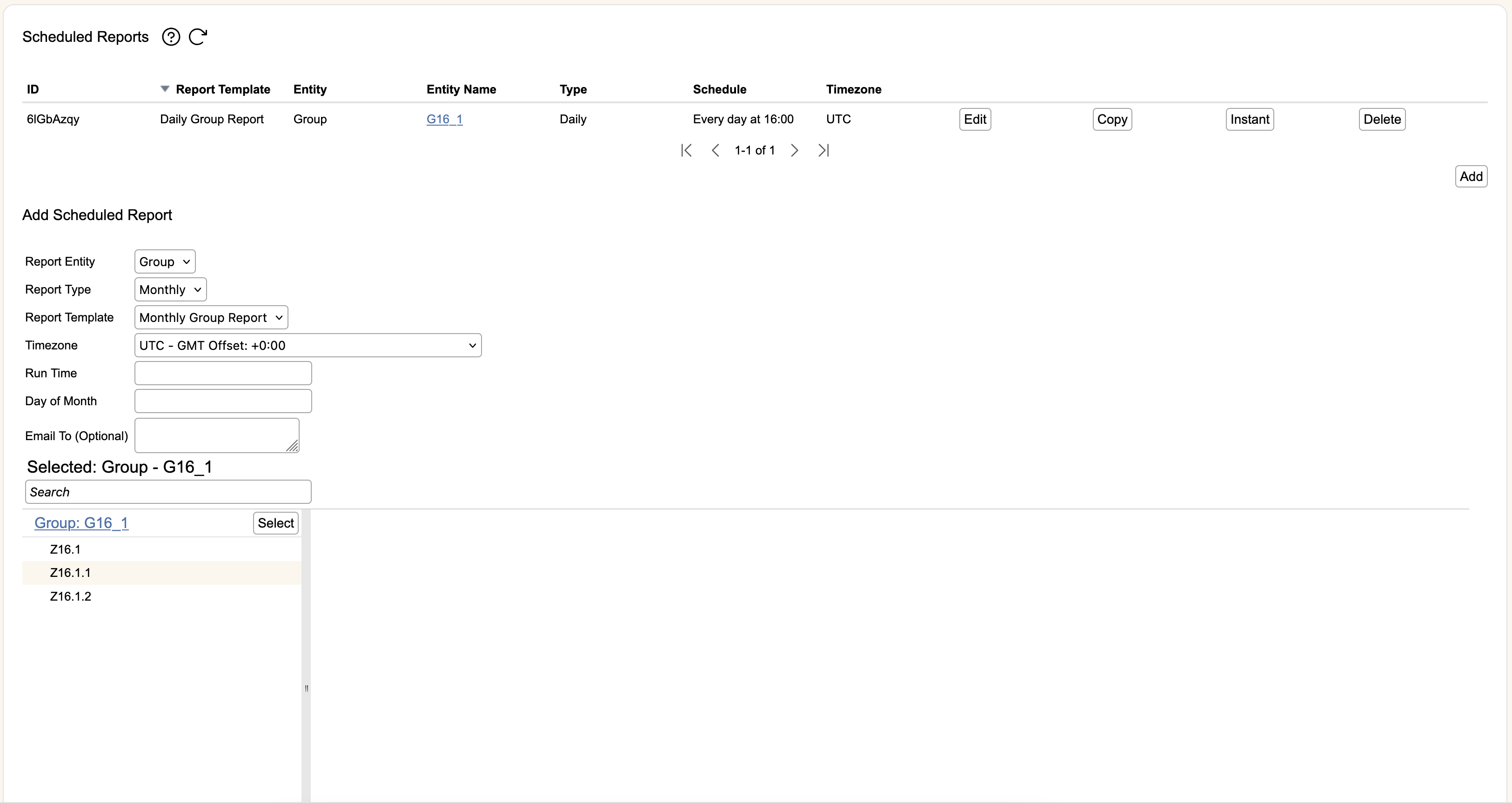
For recurring report types, you can schedule them to automatically be generated (and optionally emailed). The table lists all of the currently scheduled reports in this group.
- ID is the schedule ID listed in the top reports section.
- Report Template is the selected template used to generate the report.
- Entity Name is the entity the report will be run on.
- Type is the schedule type used for the report (daily, weekly, or monthly) and Schedule will show the requested time for the report to run.
- Timezone is the Olson timezone used for scheduling and running the report, as well as labelling timestamps within the report itself.
Reports rely on their timezone for scheduling. If you want to run a daily report every day at a certain time in one timezone, be aware this may not be the same time as the locally displayed timezone in rWeb. This section will always display the time requested for the report's timezone under Schedule.
For reports that are monthly in basis, if the selected day doesn't exist in every month it will run on the last available day of the month (i.e. picking 31 as the day will run on the 30th in months with only 30 days, and on the 28th or 29th of February depending on leap year).
Once a report is scheduled, you can Edit it to change the scheduled report, Copy it to open the schedule editor with a copy of the current report's settings, hit Instant to push the report's settings to the instant report section so you can run a report immediately, or Delete the scheduled report entirely.
Reports that have any Email To entries will automatically be emailed to the list after the report is generated. Email addresses should be comma separated.
Instant Report
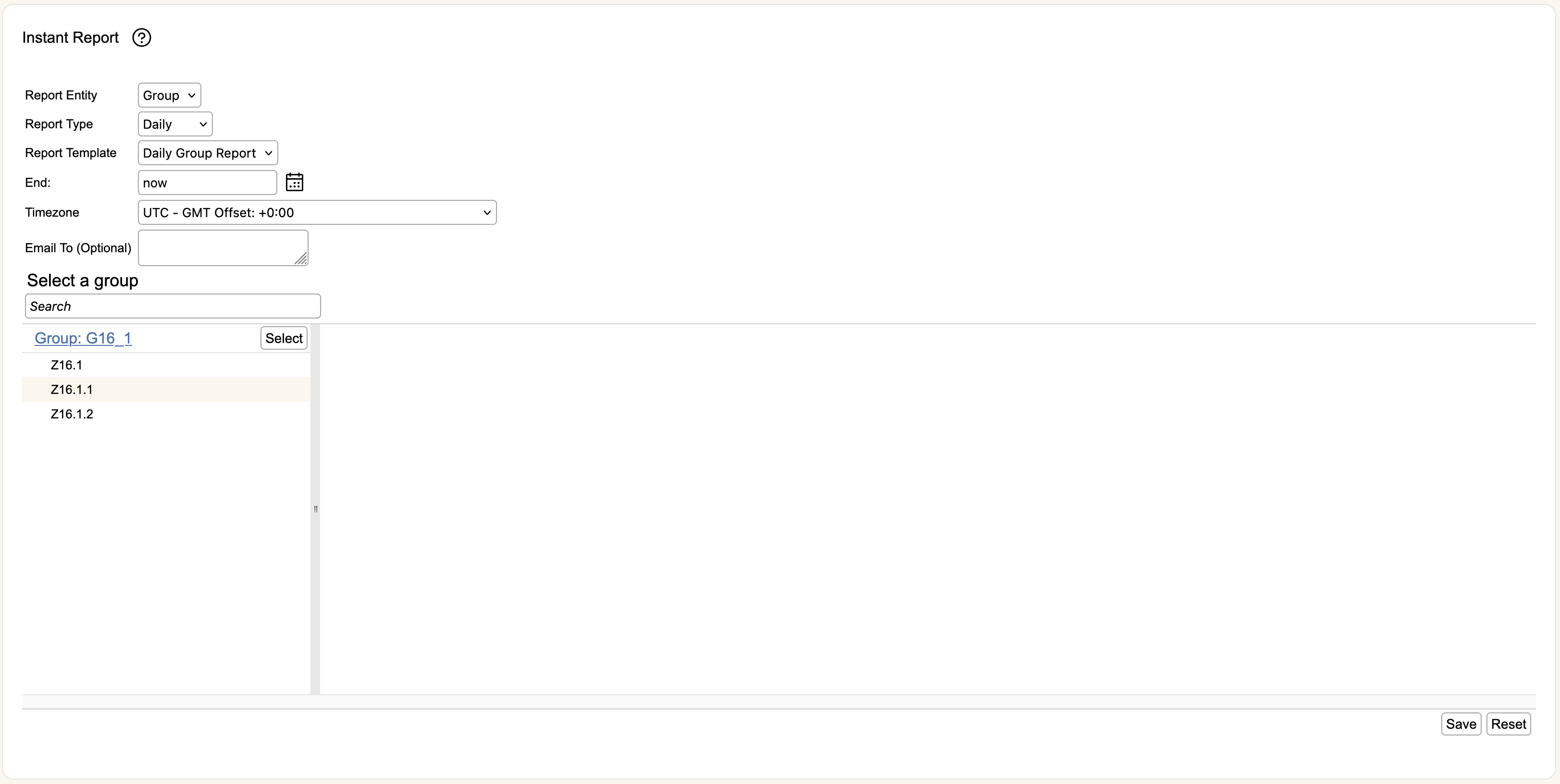
Instant Reports are used to run any non-victim report immediately. For daily, weekly, or monthly report types, the report generator will calculate the appropriate start date based on the selected End date. For manual report types, you will need to select both Start and End dates for the report.