Zone Traffic Controls
This configuration section affects each of the mitigation controls for the selected zone at the same time.
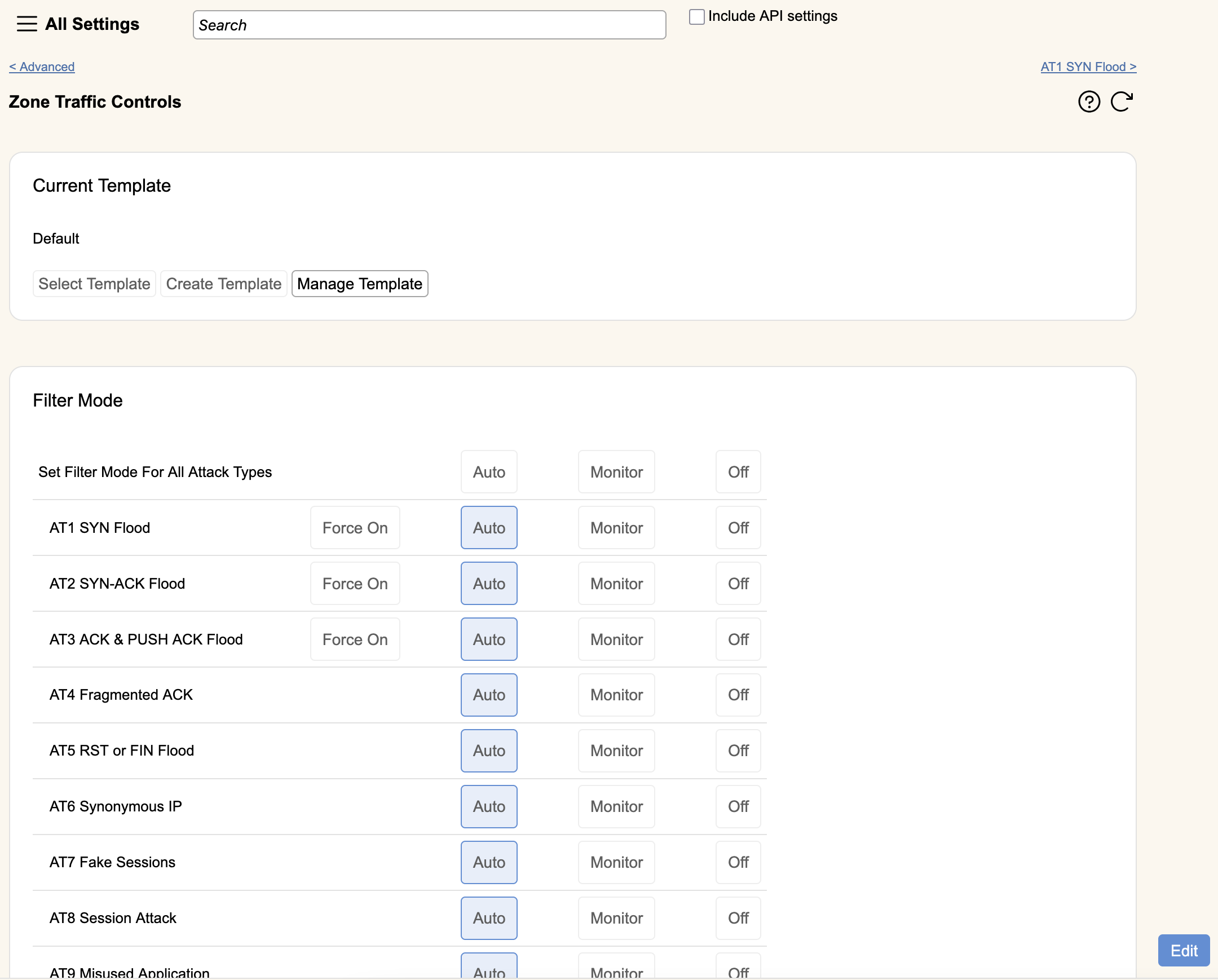
Current Template
Templates allow you to save the current configuration for a zone as a template, so you can quickly apply one set of configurations to multiple zones.
Templates affect all of the following settings:
- Mitigation specific controls for AT1-25, 62 (Invalid Packets)
- Auto/Monitor/Off for AT1-25, 61 (Application Specific Filters), 62 (Invalid Packets), 63 (Block List)
- Victim Threshold & Notification for AT1-25, 61, 62, 63
Templates do not affect:
- Contents of Block Lists (AT63)
- Contents of Application Specific Filters (AT61)
- Anything related to Allow Lists
Under Global Traffic Controls, you can see the Current Template. Attack controls that have been modified from the current template will be displayed in bold text in the All Settings menu.
In order to Select or Create a template, hit Edit first.
Clicking Select Template populates a list of all templates available to your zone. Templates are owned by group, and visible by default to all children groups and zones. Hit Apply to Zone to immediately apply that template to the zone.
Clicking Create Template allows you to name and save all the settings currently applied in the zone as a new template.
Manage Template brings you to the group that owns the current zone's template screen (the group will be shown in the omnibar at the top left of the screen), so that you can compare across multiple templates or apply a template to multiple zones.
Filter Mode
This section shows an overview of the current mode each algorithm is in. After clicking Edit, each of these buttons will set the selected Attack Type (AT)/algorithm within the zone to use the selected mode. The first row, "Set Filter Mode for All Attack Types" will set all algorithms to the selected value. Values that are different than the currently selected template for the zone will be shown in bold. When finished editing, hit Save to apply your changes or Cancel to revert them. The different modes you can select are:
- Auto- In this mode, the algorithm works according to its current settings, and if it detects an attack will automatically drop it.
- Monitor- In this mode, the algorithm works according to its current settings, and if it detects an attack it will record there is an ongoing attack but it will not drop any traffic.
- Off- In this mode, the algorithm is disabled and all traffic it would normally examine is forwarded automatically.
- Force On- This mode is specific to AT1/AT2/AT3 and has further restrictions for use detailed on their documentation pages.
Reporting Threshold
Each AT/algorithm can be set up to notify the user of attacks at varying levels of criteria. Hitting Enable makes all algorithms use their current settings for notification, where Disable means notifications will happen for all detected attacks, regardless of size or duration.